Blog Customer ServiceGoogle Collaborative Inbox: Setup, Limits & Alternatives
Google Collaborative Inbox: Setup, Limits & Alternatives
Google Collaborative Inbox lets your team manage a shared address like support@ for free. Here's how to set it up, where it falls short, and the best alternatives.


✨ Automate your support with the fastest AI-enhanced Inbox today →
Your team's shared support@ address is a mess. Everyone's looped in, but nobody actually owns it, and replies keep slipping through the cracks.
Google Collaborative Inbox is Google's free fix - a Google Groups feature that lets your team manage a shared address together. But it only takes you so far.
This guide covers what it is, how to set it up, where it falls short, and when it's time to switch. 👇
Key takeaways:
- What it is: Google Collaborative Inbox is a free Google Groups feature that lets a team manage a shared address like support@ or info@ without sharing passwords.
- Best for: small teams (roughly 2-5 people) with low email volume who already use Google Workspace and just need basic shared email management at no extra cost.
- Biggest limits: replies go out from personal Gmail accounts instead of the shared address, and there's no collision detection, no internal notes, no automation, no analytics, and no real mobile app.
- Other native options: Gmail delegation works for 1-5 people, and Google's newer native shared inbox (rolling out in phases) finally shows who replied.
- Modern alternative: Featurebase✨ gives you a true shared inbox that sends from your support address, prevents duplicate replies, and reports on response times, all in one place.
What is Google Collaborative Inbox?
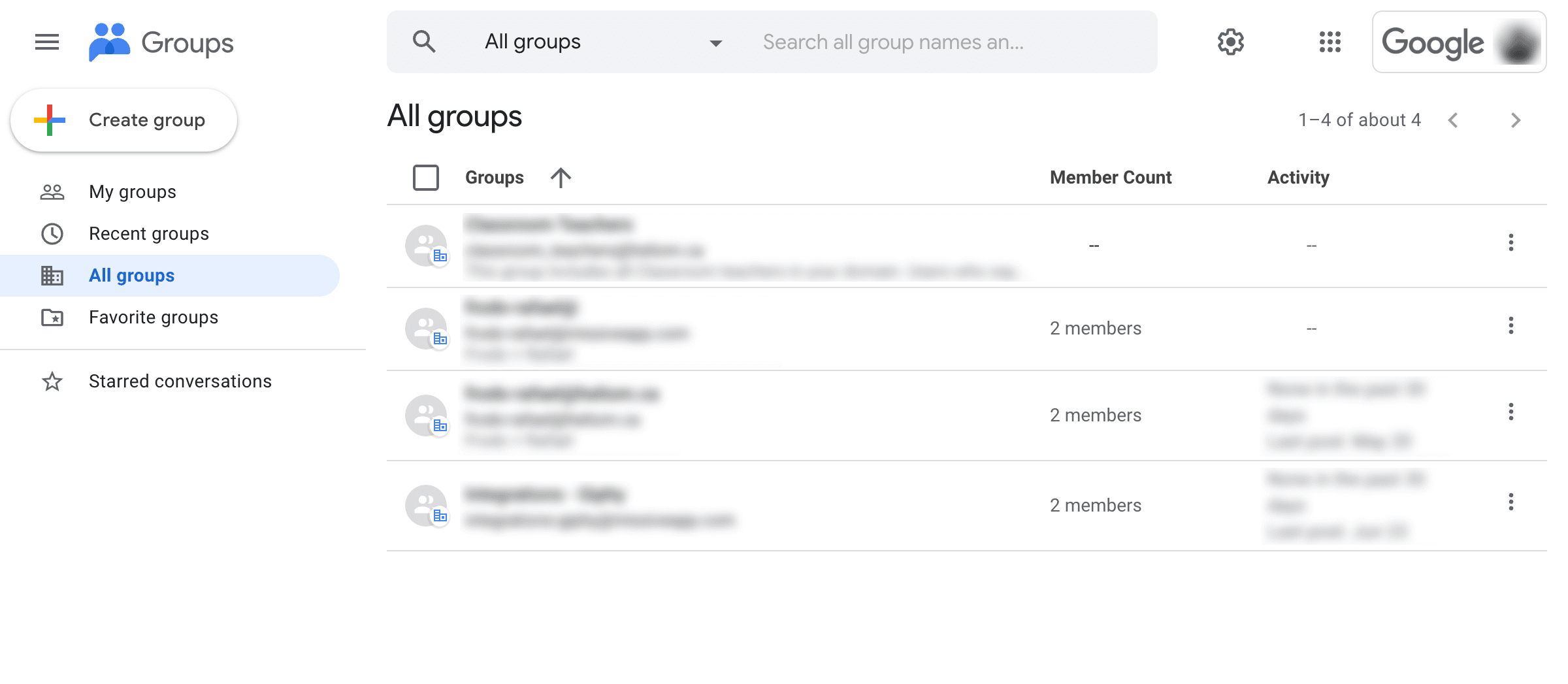
Google Collaborative Inbox is a feature of Google Groups, available to businesses on Google Workspace (formerly G Suite). It turns a Google Group into a shared mailbox so a team can manage a single email address, like support@ or info@, from their own accounts.
Think of it as the grown-up version of a distribution list. A plain distribution list just forwards every message to each member's personal inbox. A Collaborative Inbox adds a layer of teamwork on top: members can claim conversations, assign them to each other, mark them as resolved, and organize them with labels.
The big win is that nobody has to share a password. Each person logs in with their own Google account and works the shared address securely from the Google Groups interface.
How to set up and manage a Google Collaborative Inbox
Setting one up takes about 15 minutes, and you'll need admin access to your Google Workspace or Google Groups account.
Setting it up in Google Groups
- Go to Google Groups (groups.google.com) or the Admin console, then create a new group.
- Give it a name and a shared email address, like support@yourcompany.com.
- In the group's settings, enable the Collaborative Inbox feature.
- Turn on conversation history, which is required for the assignment and tracking features to work.
- Add your team members and set their permissions so they can take, assign, and resolve conversations.
One thing to flag up front: the Collaborative Inbox option only works for the right group type, and you can't change a group's type after you create it. If the option is missing, you'll usually need to recreate the group.
Managing conversations
Once it's live, members work the queue from the Google Groups interface. Day to day, the workflow comes down to 4 actions:
- Assign: take a conversation yourself or hand it to a specific teammate so there's a clear owner.
- Resolve: mark a conversation as complete, no action needed, or a duplicate once it's handled.
- Label: tag related conversations so they're easy to group and find later.
- Filter: sort the queue by status to see what needs attention, using filters like
is:unassigned,is:assigned, andis:completed.
A good habit is to review the unassigned filter every day. It's the fastest way to catch messages that have fallen through before a customer follows up.
What Google Collaborative Inbox does well
For the right team, Collaborative Inbox genuinely solves a problem. Its strengths come from being simple, free, and built into a tool you already use:
- No password sharing: everyone accesses the shared address with their own credentials, which is far safer than passing one login around.
- Free with Google Workspace: there's no extra software to buy and no per-seat add-on. It's included in your existing plan.
- Clear ownership: assignment and status tracking mean conversations have an owner and a state, not just a pile of unread email.
- Separate from personal inboxes: the shared address lives on its own, so team email doesn't flood everyone's personal Gmail.
- Google-grade admin control: access, 2-step verification, and audit logs are all handled by your Workspace admin.
For a 2 or 3 person team handling a handful of emails a day, that's often enough.
The limitations of Google Collaborative Inbox
Here's where things get rocky. Collaborative Inbox was built as a light add-on to Google Groups, not as a real team inbox, and the cracks show fast as you grow. These are the limitations that frustrate teams most:
- Replies come from personal addresses: members respond from their own Gmail (sarah@company.com), not the shared support@ address, unless they set up extra workarounds. There's also no shared Sent folder, so a teammate's reply isn't visible to the rest of the group.
- No collision detection: two people can open and answer the same email at the same time with no warning. The customer gets two replies, which looks sloppy.
- No internal notes: you can't leave a private comment on a conversation for a teammate. Any internal back-and-forth has to happen in Slack or a forwarded email, which loses all the context.
- No automation: every assignment and label is manual. You can't auto-route emails by topic, keyword, or workload, so triage becomes a bottleneck at volume.
- No analytics: Google gives you zero reporting. You can't see response times, who's handling the most volume, or which conversations are going unanswered, so the support metrics that tell you how the team is doing simply don't exist.
- A clunky, separate interface: the Groups UI doesn't live inside Gmail, so your team has to bounce between two apps to stay on top of things.
- Weak mobile access: Collaborative Inbox emails don't show up in the Gmail mobile app. On the go, you're stuck with a limited mobile browser experience.
Those gaps matter more than they sound, because speed is what customers judge you on. HubSpot's research found that roughly 90% of customers say an immediate response is important when they have a customer service question, and about 60% define "immediate" as 10 minutes or less. When no one can tell whether an email's been answered and there's no data to spot what's slipping, hitting that bar is mostly luck.
Collaborative Inbox vs Gmail delegation vs Google's native shared inbox
Collaborative Inbox isn't your only native option in Google Workspace. The two others worth knowing are Gmail delegation and Google's newer native shared inbox.
Gmail delegation lets one person grant a few colleagues access to their existing Gmail inbox. It's a one-to-few setup that's perfect for executive assistants or very small teams, and replies can go out from the shared address. The trade-off is no assignment, no status tracking, and delegates see every email in that account.
Google's native shared inbox is newer. An admin sets it up from the Admin console, replies go out from the shared address with a "sent by" field showing who actually responded, and it lives right inside Gmail. It's rolling out in phases on Business plans, so it may not be in your console yet.
Here's how the three compare:
| Feature | Google Collaborative Inbox | Gmail delegation | Native shared inbox (2026) |
|---|---|---|---|
| Best for | Teams of 5+ | 1-5 people / assistants | Teams wanting a Gmail-native shared address |
| Send from shared address | No | Yes | Yes (with "sent by" field) |
| Email assignment & status | Yes | No | Limited |
| Collision detection | No | No | No |
| Lives inside Gmail | No (separate Groups UI) | Yes | Yes |
| Mobile access | Limited (browser only) | Yes (Gmail app) | Yes (Gmail app) |
| Analytics | No | No | No |
| Cost | Free with Workspace | Free with Workspace | Included on Business plans |
The pattern is clear: each native option fixes one or two annoyances but none of them give you collision detection, internal notes, automation, or analytics. For that, you need a dedicated tool.
When to move to a dedicated shared inbox
Collaborative Inbox is fine until it isn't. A few red flags usually signal you've outgrown it:
- You've had 2 or more duplicate replies to the same customer in a single month.
- You're using a spreadsheet or a Slack channel just to track who's handling what.
- Your team needs to discuss emails internally before responding, and forwarding isn't cutting it.
- You're handling more than ~200 emails a day, or you support customers across more than just email.
- A manager keeps asking how fast the team is responding, and nobody can actually answer.
That's the gap dedicated shared inbox tools fill. With a platform like Featurebase, your whole team works the shared support address from one inbox: replies go out from the support address rather than someone's personal Gmail, assignments stop two people answering the same email, and you finally get the response-time analytics Google never gave you.
A modern alternative: Featurebase
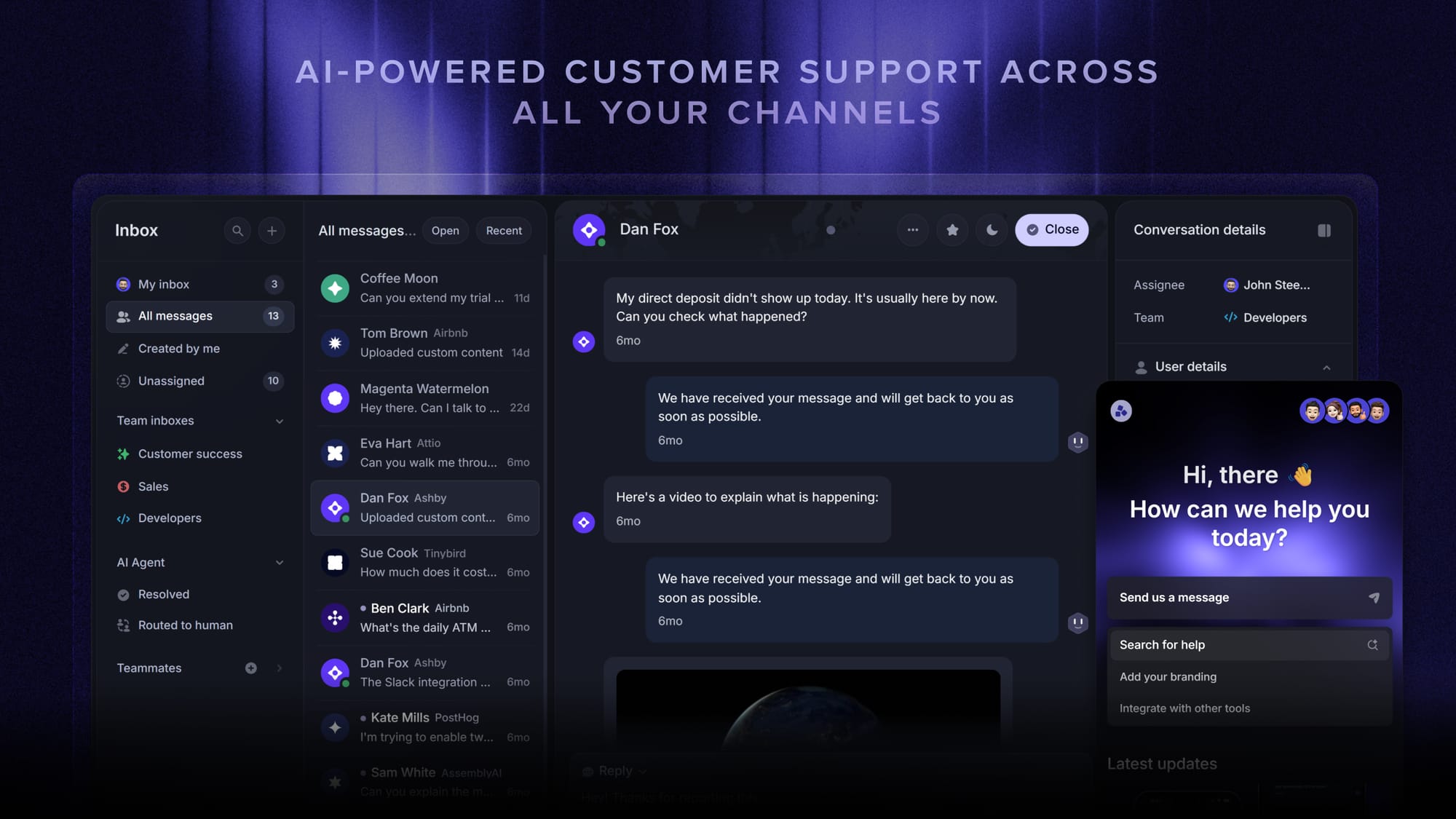
If you've outgrown Collaborative Inbox, the fix is a tool built for shared email from the ground up rather than bolted onto Google Groups. Featurebase is one option worth a look, and it's designed around the exact gaps covered above.
Replies go out from your shared support address, not someone's personal Gmail, and assignment plus collision detection mean two people don't answer the same email by accident. You also get the response-time and workload analytics Google leaves out, internal notes so teammates can discuss a thread without forwarding it, and a real mobile app instead of a stripped-down browser view. On top of that, an AI agent and help center can deflect the repetitive questions before they ever reach a human.
It runs alongside live chat and Slack in one inbox, so it scales past email if your team grows into other channels. There's a free plan to start with, and paid plans begin at $29 per seat per month, which keeps it accessible for small teams testing the waters.
Conclusion
Google Collaborative Inbox is a solid free starting point. If you're a small team on Google Workspace managing a low-volume shared address, it does the job without costing you a cent. But it was never designed to scale, and the moment you need to send from your shared address, prevent duplicate replies, or measure how your team is doing, you'll hit a wall.
Featurebase is a modern AI-powered support platform that gives you a true shared inbox, an AI agent, a help center, and feedback tools in one place. Your team answers from one view, replies go out from your support address, and you get the response-time analytics Google leaves out.
It comes with a Free plan and the onboarding is quick with no credit card required, so there's no downside to trying it. 👇
✨ Automate your support with the fastest AI-enhanced Inbox today →
FAQs
Is Google Collaborative Inbox free?
The Collaborative Inbox feature itself is free, but it requires a paid Google Workspace plan (starting around $7/user/month). So you're not paying extra for the feature, but you do need a Workspace subscription to use it. There's no separate license for the shared address itself.
Can you send emails from the shared address in Google Collaborative Inbox?
Not by default. Members reply from their personal Google Workspace addresses, so customers see an individual email like sarah@company.com rather than support@company.com. You can configure the group to allow sending as the group address, but it takes extra setup and isn't the standard behavior.
Can you use Google Collaborative Inbox on mobile?
Not really. Collaborative Inbox conversations don't appear in the Gmail mobile app, so you can only access them through a mobile browser, which is a limited experience. Teams that handle shared email on the go usually need a dedicated tool with a proper mobile app.
What's the difference between Gmail delegation and a Collaborative Inbox?
Gmail delegation gives a few people access to one person's existing inbox, with no assignment or status tracking. It's best for 1-5 people or executive-assistant setups. A Collaborative Inbox is a dedicated group address built for team collaboration, with assignment and status tracking, and it suits larger teams of 5 or more.
Does Google Collaborative Inbox track response times or analytics?
No. Google provides no native reporting on response times, workload, or unanswered conversations for a Collaborative Inbox. This is one of the most common reasons teams switch to a dedicated platform like Featurebase, which tracks response times and SLA performance automatically.
Can multiple people manage the same Gmail account at once?
Google actively discourages it. If several people sign into the same Gmail account from different places, the account can get temporarily locked for exceeding usage limits. Collaborative Inbox and Gmail delegation both exist so a team can manage a shared address with their own logins instead.