Blog Customer ServiceTeam Inbox Management: A Modern Playbook for Teams
Team Inbox Management: A Modern Playbook for Teams
75% of CX leaders say ticket volume is up. Learn how to manage a team inbox with clear owners, statuses, SLAs, and automation.


✨ Automate your support with the fastest AI-enhanced Inbox today →
A team inbox starts simple. One address, a few teammates, everyone handles what they can.
Then volume grows. Two people reply to the same email. Customer queries slip through the cracks. Nobody knows what got answered, and the inbox starts fighting back.
You’ll also hear this called a shared inbox, but in this guide we’re focusing on the team workflow behind it: ownership, statuses, routing, SLAs, and internal collaboration.
This guide is the playbook for getting ahead of it: how to actually run a team inbox so customer conversations land with the right person, response times stay tight, and your team doesn’t burn out triaging. 👇
Key takeaways:
- A team inbox without rules turns into duplicate replies, missed emails, and zero accountability. Ownership and statuses fix most of it.
- 7 practices make the difference: clear assignment, shared statuses, tags and routing, response SLAs, internal notes, automation, and a knowledge base that deflects volume.
- Gmail and Outlook can handle small teams, but multichannel support, detailed analytics, and proper team collaboration need real shared inbox software.
- Track 4 metrics so you can see what's working: first response time, resolution time, volume by tag, and customer satisfaction.
- Tools like Featurebase✨ bring your team inbox, help center, and AI agent into a single platform with a free plan, so support teams can manage every customer conversation in one place.
What is team inbox management?
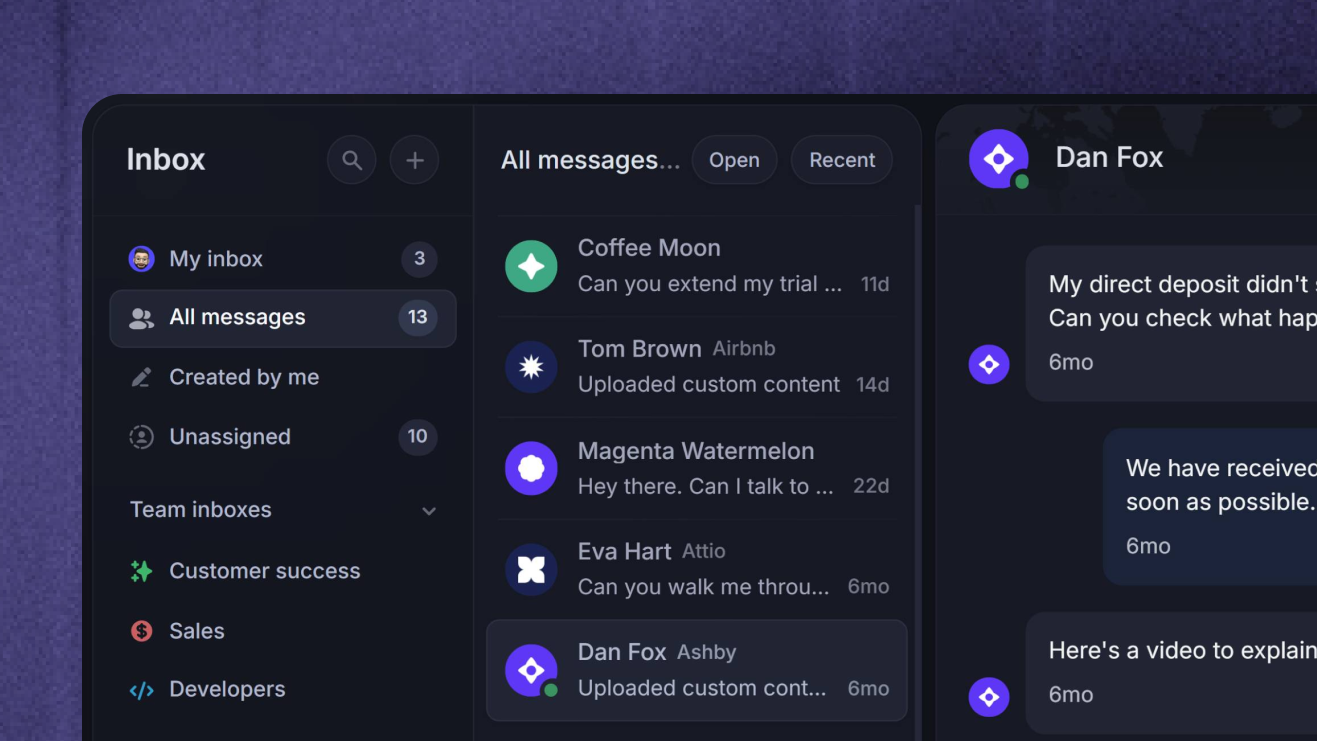
Team inbox management is the set of rules, workflows, and tools a group of people use to handle customer email (and now chat and Slack) from a single shared address. The goal is simple: every message gets a clear owner, a clear status, and a clear deadline, without two team members tripping over each other.
A managed team inbox feels less like a chaotic email client and more like a lightweight email ticketing system. Conversations have states; replies have owners; and internal discussions happen alongside the customer thread rather than in a separate chat. The whole thing is searchable later.
The opposite (an unmanaged shared inbox) is the situation most teams start in. Everyone has access to support@yourcompany.com, everyone hopes someone else replied, and nobody knows for sure until a customer follows up asking why they were ignored.
Team inbox vs distribution list vs personal inbox
These three look similar from the outside but behave very differently:
- A personal inbox: One person owns the address (jane@yourcompany.com). Only Jane sees the emails, replies, and is responsible for follow-up. Fine for individual work, but invisible to the rest of the team.
- A distribution list/group address: A group address like sales@yourcompany.com that fans out to multiple people's personal inboxes. Everyone gets a copy, nobody is the owner, and there's no shared state. The default outcome is either duplicate responses or silence.
- A team inbox: A single shared address that opens in a shared inbox platform where multiple team members can see the same inbox, assign emails, leave internal notes, and track status together. This is what we mean when we say "team inbox management."
The leap from a distribution list to a true team inbox is where most of the wins come from. Same group address on the outside, completely different workflow on the inside.
Why team inbox management matters
The case for managing a team inbox properly is built on three things: rising volume, rising customer expectations, and the cost of every dropped email.
Volume is climbing. HubSpot's 2024 State of Service report (surveying 1,500+ customer service leaders) found that 75% of CX leaders say ticket volume is up year-over-year. More incoming messages, more channels, more reasons something falls through.
Customer expectations are climbing faster. A SuperOffice and Toister study of 3,200 consumers found that 88% expect a business email response within one hour, with 15 minutes considered world-class. Most teams aren't close.
The cost of an unmanaged team inbox shows up in three predictable ways:
- Duplicate responses: Two team members reply to the same customer email, often with slightly different information. The customer trusts you less, and your team wastes effort.
- Missed emails: A request lands at 6pm Friday, everyone assumes someone else will pick it up, and nobody does. The customer follows up on Monday, frustrated, and the conversation now stalls.
- Zero accountability: When ownership is implicit, performance is invisible. You can't coach a team you can't measure, and you can't measure response times when nobody's name is on a thread.
Fix the management layer, and most of this disappears, without buying anyone a faster typing course.
This is the inbox-level playbook; for the ticket-level view, see our ticket handling best practices.
7 practices for managing a team inbox that actually scale
These 7 practices are the core operating system. Adopt them in order: ownership first, statuses second, everything else builds on those two.
1. Define clear ownership and assignment rules
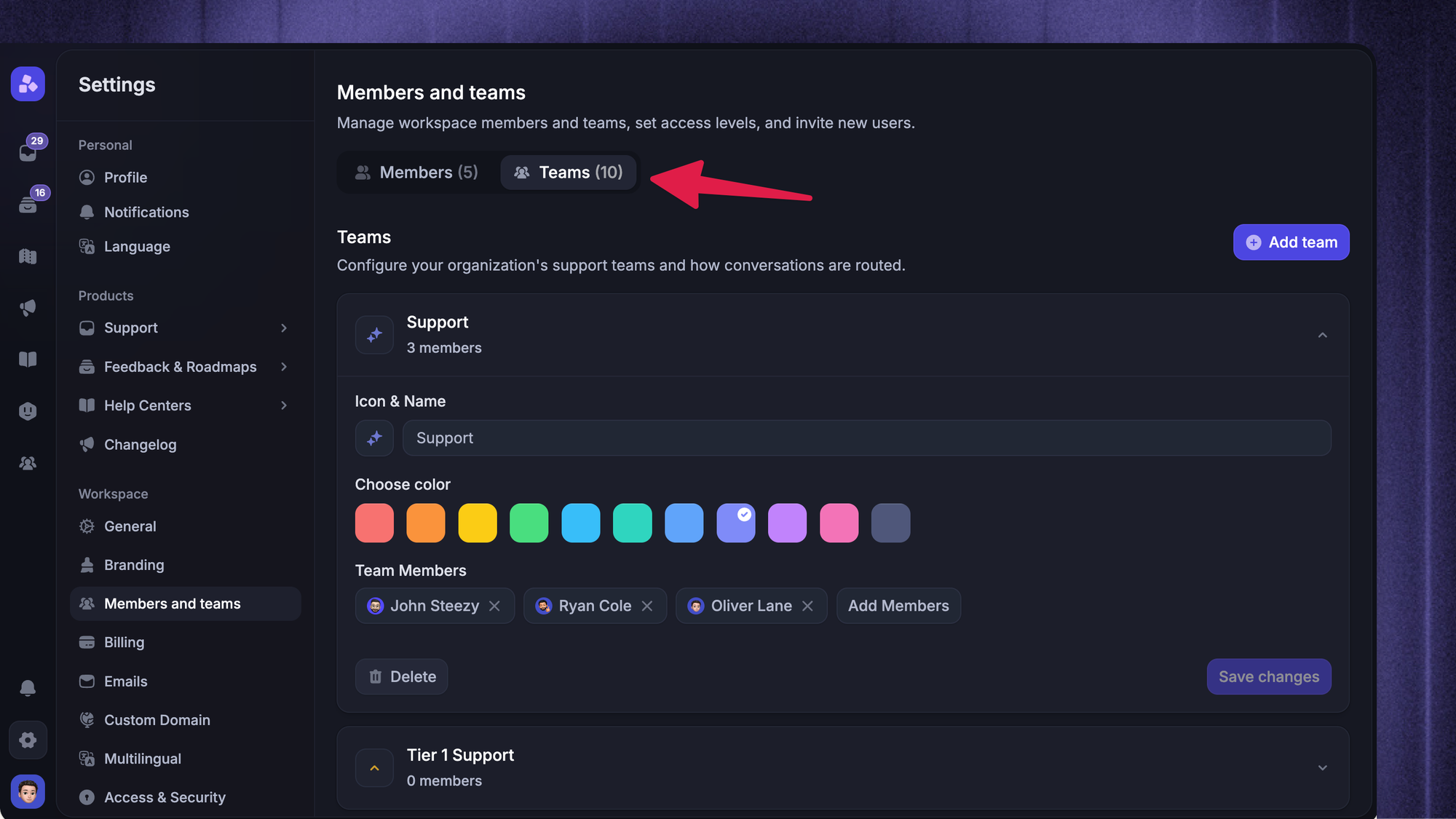
Every conversation in your shared inbox needs exactly one owner at any given moment. Two owners are the same as zero owners.
The simplest model: when a new email lands, someone (or an automation rule) assigns it to a specific team member. That person owns the conversation until it's resolved or formally reassigned. Their name is visible at the top of the thread. They're the one who's going to reply.
How to handle email assignment depends on team size:
- Small teams (2-5 people): Round-robin auto-assignment works fine. The team inbox management rotates new emails across the team, balancing load without anyone having to think about it.
- Larger teams: Route by topic or skill. Billing questions go to whoever handles billing, product bugs go to whoever owns triage. Multiple team members can be in a routing pool, and assignment lands on the next available person.
- Mixed-channel teams: Route by channel too. Email might go to one rotation, live chat to another, Slack tickets to a third. The same address can fan out to different teams behind the scenes.
The rule of thumb: a customer email should have an assigned owner within 5 minutes of arriving. If it sits unassigned longer than that, your routing rules need work.
2. Standardize statuses across the team
A team inbox without statuses is just a long list of emails with no idea which ones are done. Add explicit states and the whole inbox becomes navigable.
The minimum status set most teams need:
- Open: The conversation is active. Someone owes the customer a reply.
- Snoozed: Waiting on the customer, an internal team, or a specific date. It'll re-open automatically when the trigger fires.
- Closed: Resolved. The customer has what they need and the thread is done.
Some teams add "Priority" as a flag on top of these (urgent issue, VIP customer, escalation), so the inbox can show priority conversations first across all statuses.
Statuses do two things. They make the inbox skim-able for everyone on the team, and they create the data you need later to measure resolution time and volume.
3. Tag and route by topic, channel, and customer
Once ownership and statuses are in place, tags are how you slice the inbox. Tags are custom labels you attach to conversations so you can filter, route, and report on them.
A useful tag set usually splits into 3 groups:
- Topic tags: Billing, bug report, feature request, onboarding, refund. These tell you what the conversation is about.
- Channel and source tags: Live chat, email, Slack, in-app. These tell you where the customer came from, which matters when you're sizing your multichannel support load.
- Customer context tags: VIP, enterprise plan, free plan, churn risk. These let you prioritize and personalize without digging through CRM data on every reply.
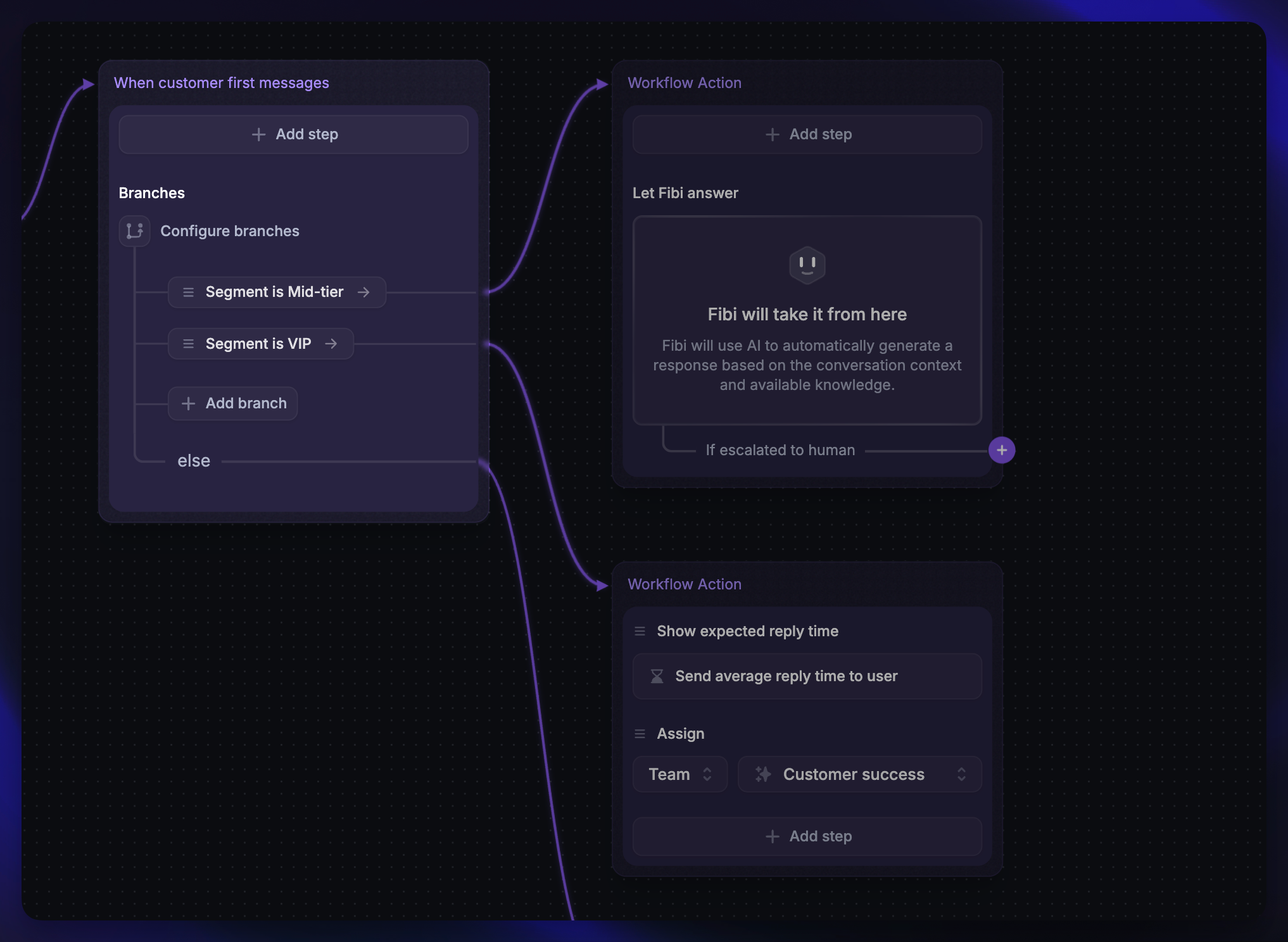
Tags also feed automation rules. A conversation tagged "billing" auto-assigns to the billing pool. A conversation tagged "churn risk" pings a manager. A conversation tagged "bug report" syncs to Jira or Linear so engineering sees it.
Resist the urge to make 80 tags on day one. Start with 8-12, see what you actually use after a month, and prune the rest.
4. Set response SLAs and track them
A response SLA (service level agreement) is the maximum acceptable time between a customer message and your reply. Without one, "fast" is whatever the team feels like that day.
Pick two numbers:
- First response time: How long from customer email to the first human reply. The benchmark most teams target: under 1 hour for email, under 1 minute for live chat.
- Resolution time: How long from customer email to a closed conversation. This varies more by topic (a billing fix is fast, a bug repro is slow), so it's usually tracked as a median by tag.
Pin those numbers somewhere visible. The team should know what "on time" means without thinking about it.
Then track them. Detailed analytics on response times and SLA breaches is what turns "we should respond faster" into "Tuesday afternoons are our slowest window, let's add coverage." Most team inbox workflows expose this out of the box.
A small caveat: SLAs are targets, not whips. The point is to expose the inbox's slow spots so you can fix them, not to punish anyone for missing a stretch goal.
5. Use internal notes instead of reply-all
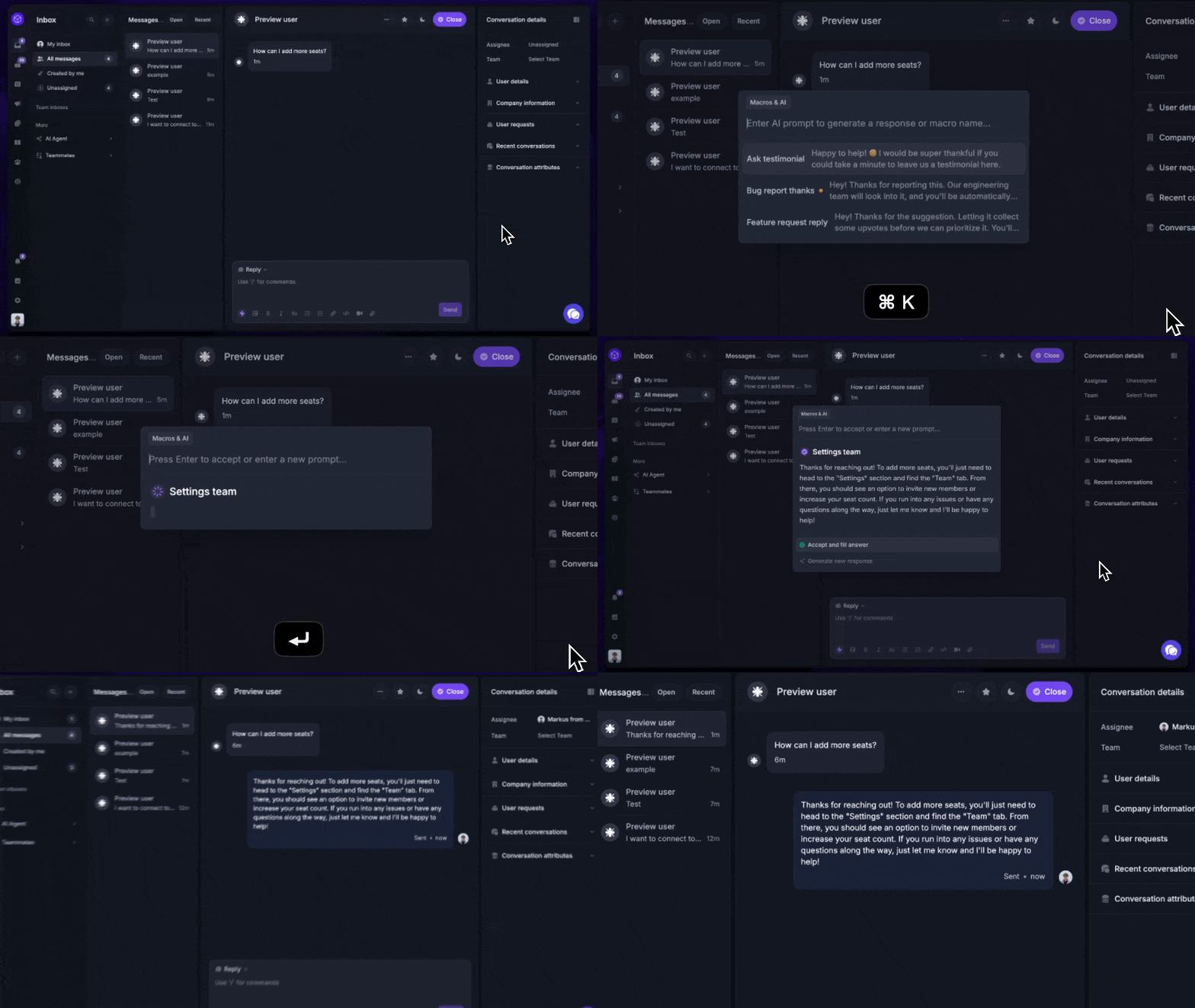
This is the single biggest workflow upgrade most teams get from a real shared customer inbox over Gmail or Outlook. Internal notes let multiple people discuss a customer email without including the customer.
In Gmail, internal discussions happen as side conversations in Slack, in DMs, on a separate email thread. Context scatters. The next person who picks up the conversation has no idea what was already decided.
In a proper team inbox, you @-mention a teammate on the conversation itself. They see the note, the customer doesn't. The whole back-and-forth lives next to the email it's about. Anyone who later opens the thread sees both the customer-facing replies and the internal discussion in order.
This sounds small. It's not. It's the difference between "let me check with engineering and get back to you" turning into a 4-hour delay versus a 10-minute resolution.
Bonus features most modern team inbox workflows layer on top:
- Shared drafts: so a teammate can review your reply before it goes out
- Internal chat: for one-off questions that don't need to live on a thread
- Mentions and assignments: that send notifications to the right person automatically
6. Automate the repetitive bits
Most of a team inbox is repetitive. The same questions come in. The same routine tasks need doing. The same routing decisions get made hundreds of times a week.
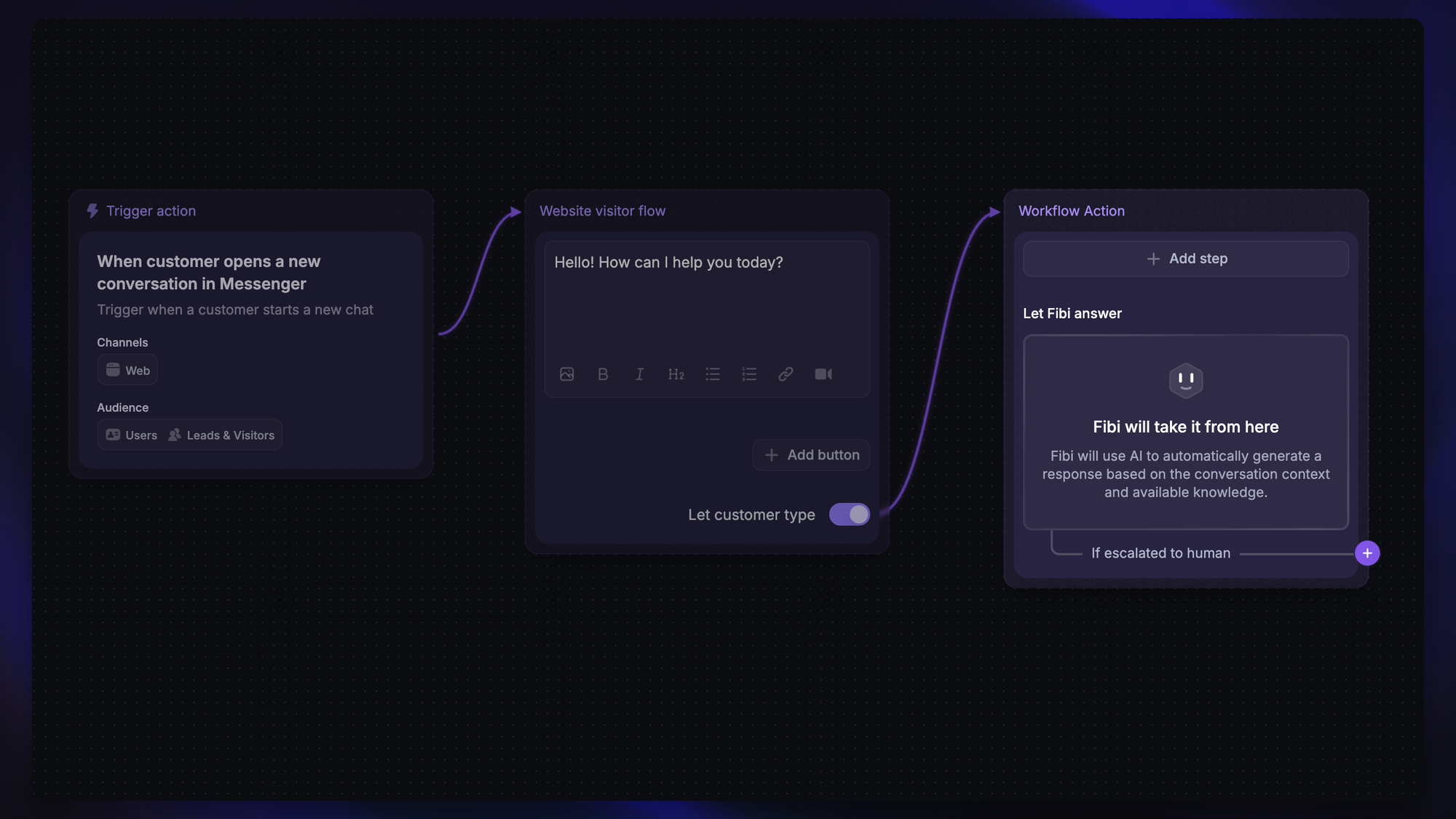
A support inbox workflow with real automation capabilities can absorb most of it. The patterns worth automating:
- Routing rules that assign incoming emails based on subject, sender, channel, or tag
- Automated workflows that change a status, add a tag, or trigger an action when a condition is met (for example: customer hasn't replied in 5 days, auto-close)
- Email templates for the 20% of replies that cover 80% of questions: password resets, refund confirmations, where-do-I-find-X
- Email signatures that pull the assigned agent's name and role, so canned-looking replies still feel personal
- AI-powered reply suggestions that draft a response based on your help center articles and past conversations, so agents start from 80% instead of from scratch (see how AI help desk software makes this work in practice)
The trap to avoid: automating before you've standardized. If your tags and statuses are messy, your automation rules will be messy too. Get the manual workflow right first, then automate the parts that don't change.
7. Back the inbox with a knowledge base
The fastest customer reply is the one you never have to send because the customer found the answer themselves.
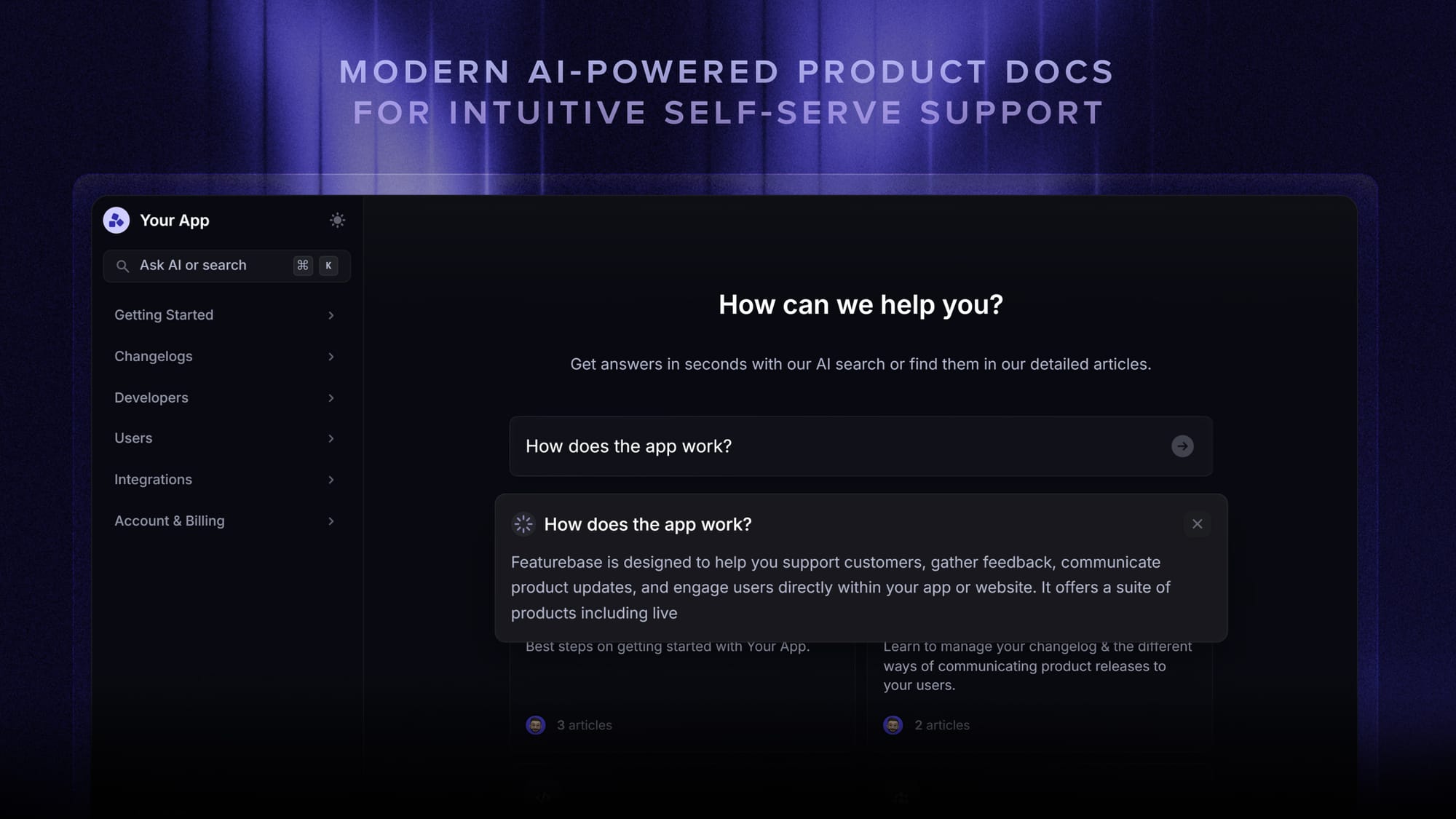
A help center (or knowledge base, depending on what you call it) is the deflection layer in front of your team inbox. It's a public, searchable set of articles covering the questions customers ask repeatedly: how to do X, what does Y mean, why is Z happening.
Three things make a knowledge base actually deflect volume instead of just existing:
- Coverage: Articles for the top 20 questions your team answers every week. Look at your tag data to find them.
- Search and AI answers: A search bar that returns relevant articles immediately, and AI-powered answers that summarize the right article in plain language. Without this, customers give up on the help center and email anyway.
- Embedded in your product: A widget inside your app, so customers can search the knowledge base without leaving where they hit the problem. Self-serve only works if it's friction-free.
Pair the help center with Featurebase's AI-powered Help Center and the support inbox starts shrinking on its own. The repetitive questions deflect themselves, the team handles the genuinely interesting cases.
✨ Automate your support with the fastest AI-enhanced Inbox today →
What to look for in a team inbox tool
If you've outgrown Gmail filters and Outlook rules, here's the criteria that actually matter when shopping for shared inbox software. These are the shared inbox features that separate a real platform from a dressed-up email client.
- Multichannel support: Email is the start, but a modern team inbox should handle live chat, Slack, and in-app messages from the same view. The fewer apps your team juggles, the faster every reply gets.
- True assignment and ownership: Single-owner assignment per conversation, with the owner clearly visible. Team-level assignment as well, for routing. Bonus if it integrates with team coordination signals (away status, time zone).
- Statuses and tags out of the box: Open / snoozed / closed at minimum. Custom tags. Custom fields for things like deal size or customer plan.
- Automation rules engine: Trigger-condition-action setup that anyone non-technical can edit. The more flexible, the more routine tasks you can offload.
- Internal notes, mentions, and shared drafts: The collaboration layer. If you can't have an internal discussion on a thread without copying the customer, the tool isn't built for teams.
- Response-time analytics: SLA tracking, first response time, resolution time, agent-level reporting. Detailed analytics is how you turn the inbox into a system you can improve.
- CRM data on the customer panel: Past conversations, plan, MRR, key custom fields, all visible next to the active email. Customer context that's one click away rather than one tab-switch away.
- User permissions and roles: Who can see what, who can reply, who can change settings. Important the moment you have more than 5 people in the inbox.
- Mobile apps: On-call coverage, weekend coverage, the late-night escalation. Most real shared inbox platforms have proper mobile apps. Some tools that bolt onto Gmail don't.
- A user-friendly interface: Sounds soft, isn't. If the inbox is unpleasant to spend 6 hours a day in, your team will route around it.
- A free plan or generous trial: So you can test it on your real team and real volume before committing. The right tool reveals itself within a week of actual use.
Match these against your team size, channel mix, and budget, and the shortlist of viable team inbox workflows.
When Gmail or Outlook stops being enough
Both Gmail's Collaborative Inbox and Outlook have native shared mailbox features. They work, until they don't.
The breakpoints are predictable:
- You hit 3+ people on the same inbox: Gmail and Outlook have no real assignment model. You can star, label, or move emails to folders, but nothing tells the team "this one is Sarah's." Duplicate replies start showing up.
- You add a second channel: Once customer queries arrive over live chat, Slack, or an in-app widget alongside email, the email client can't unify them. You end up with two tools, two backlogs, two response-time stories.
- You need detailed analytics: Gmail and Outlook will tell you how many emails arrived. They will not tell you median first response time by agent, by tag, by customer plan. Without that, SLAs are wishful thinking.
- You need automation beyond filters: Gmail filters and Outlook rules can route based on sender or subject. They can't trigger workflows, change statuses, escalate based on age, or auto-tag by content.
- You want a knowledge base or help center in the same platform: Gmail and Outlook are email management software, not customer support platforms. If you want a single platform that covers email, chat, help center, and feedback, you're looking at desk software, not an email client.
Small businesses on tight budgets sometimes squeeze a year out of plain Gmail with a few labels. Past 3-5 team members or 100 conversations a week, the math flips: the time saved by real team inbox workflows covers the cost several times over.

Resolve 70% of customer requests with AI
Automatically resolve customer issues & cut down support loads for your team
Metrics worth tracking
You don't need a dashboard with 40 charts. 4 metrics cover most of what matters.
- First response time: Median time from customer message to first human reply. The single most-correlated metric with customer satisfaction in support work.
- Resolution time: Median time from first message to conversation closed. Tracked overall and by tag, so you can see which categories of customer queries are slow.
- Volume by tag: How many conversations per topic, per channel, per week. This is where your knowledge-base roadmap comes from: the top 5 tags by volume are the 5 articles to write next.
- Customer satisfaction (CSAT): A 1-question survey after a conversation closes. Pairs with response-time data to tell you whether fast replies are also good replies. Most team inboxes have CSAT built in.
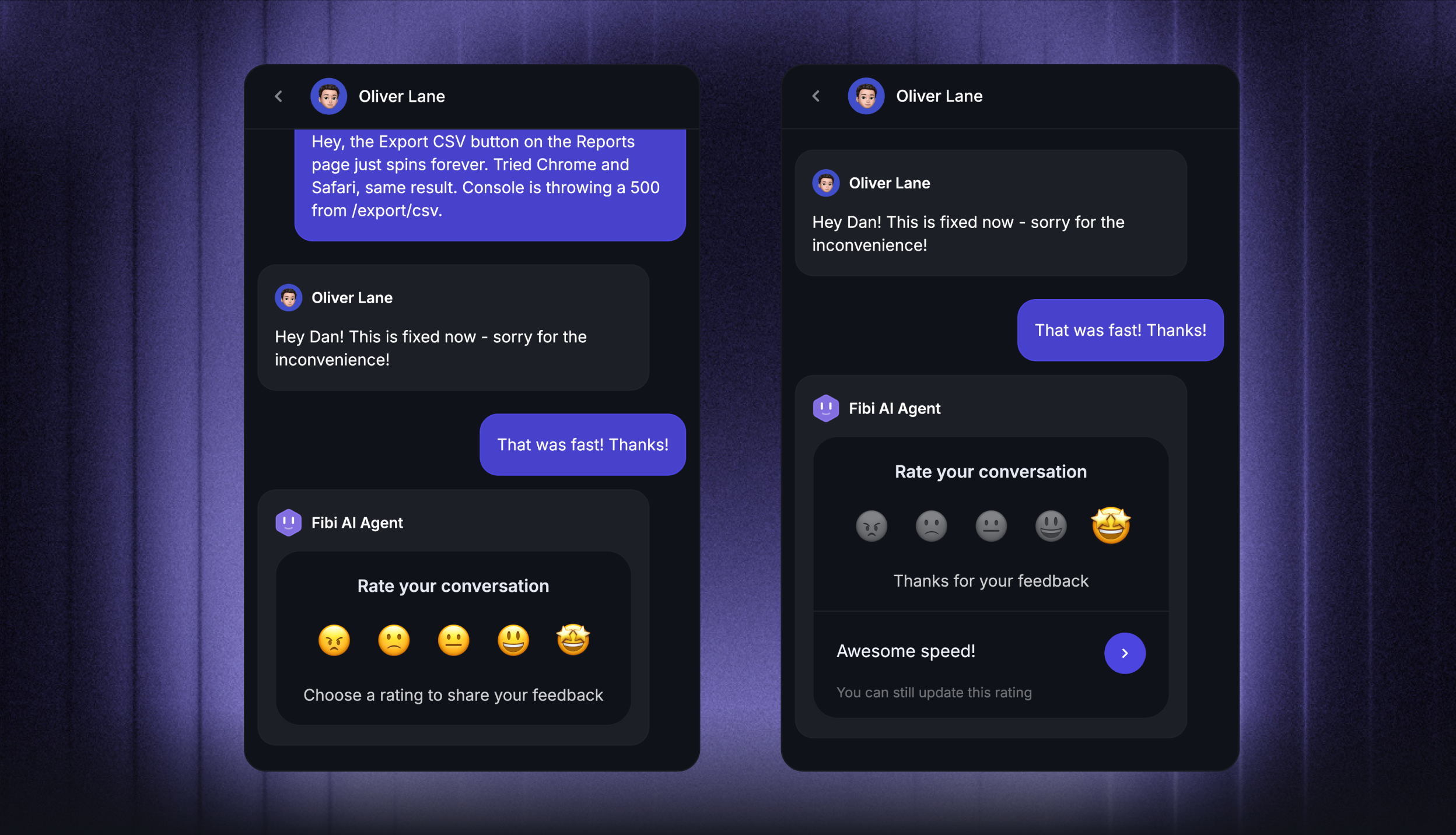
Watch these weekly, not daily. Daily noise leads to over-rotation. Weekly trends give you valuable insights you can actually act on.
Pick a modern team inbox for support and ops teams
If you're picking a tool right now, here's where Featurebase fits.
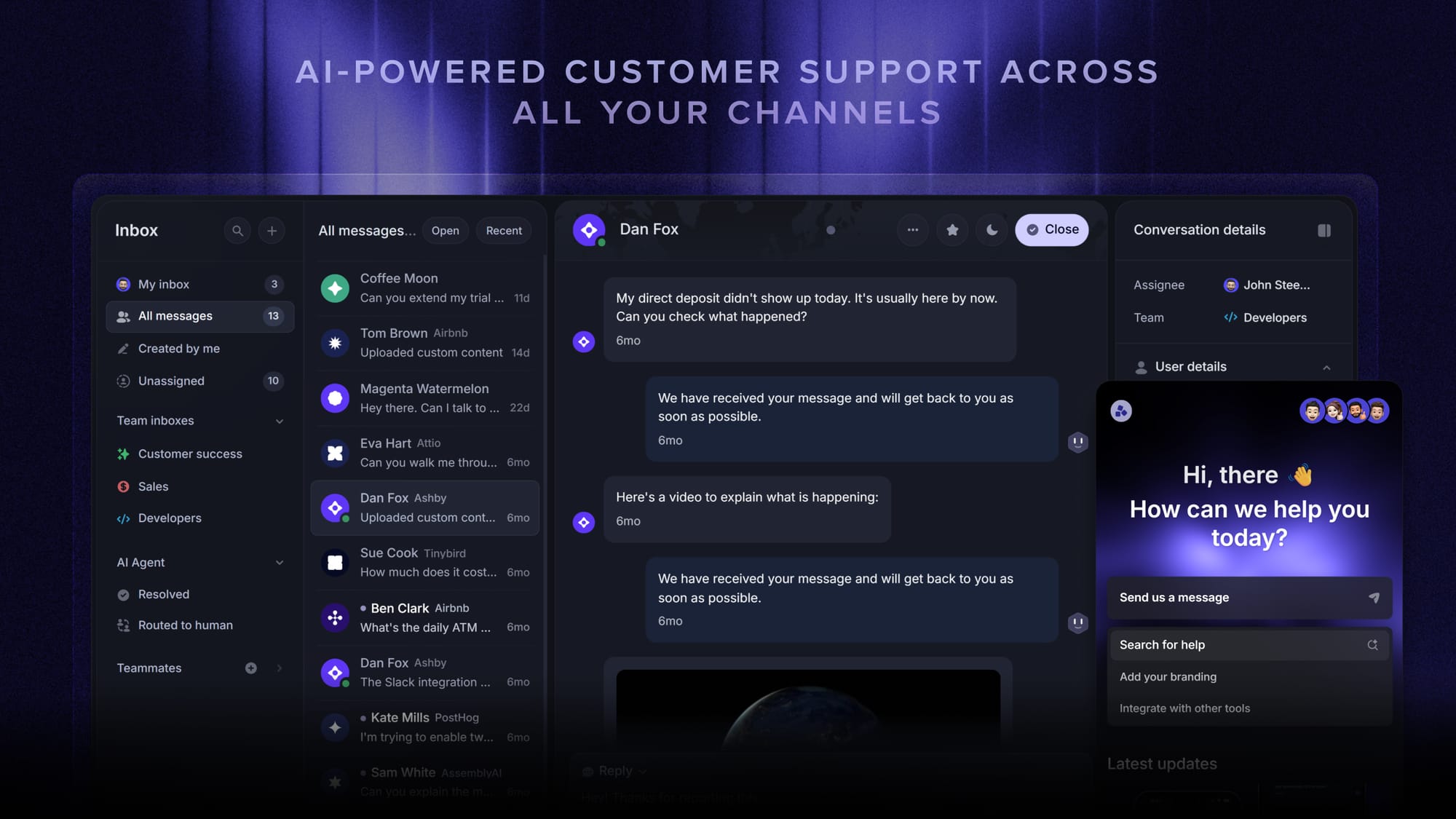
Featurebase is a modern AI customer support platform for product-led SaaS. It combines AI-powered support, help center, and feedback management into a single platform for startups that want all their customer-facing tools in one place. Featurebase is loved by thousands of support teams from companies like Lovable, Raycast, and n8n. 💫
Top features:
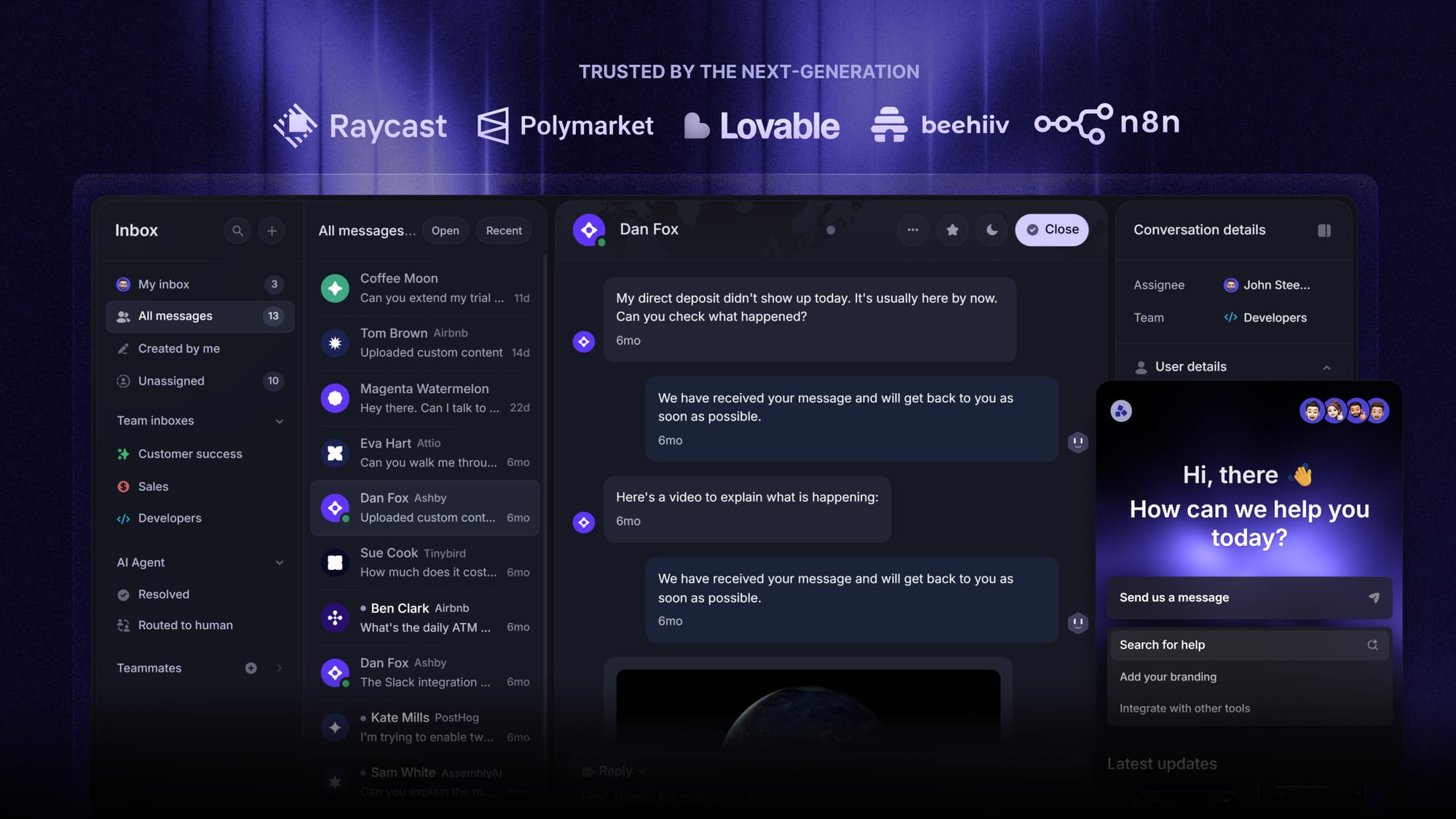
- Omnichannel inbox – Manage live chat, email, and Slack conversations from one AI-powered view
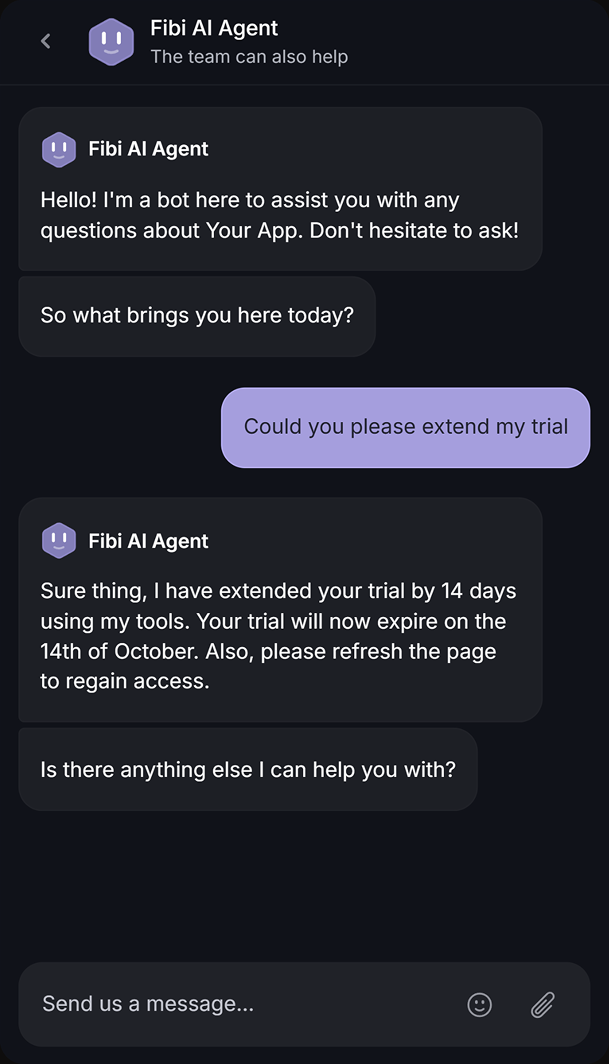
- Fibi AI Agent - Resolve customer issues on autopilot & run custom actions like trial extensions and refunds
- Help center with AI search – Provide instant, multilingual self-serve answers
- Workflows & automations – Auto-assign tickets, route conversations, collect customer data, and more
- AI Copilot – Help your agents answer customers faster with AI Copilot that uses your internal knowledge
- Multi-brand support – Manage multiple Help Centers and Live chats from a single workspace
- Automatic AI translations – Automatically translate all messages and help articles to your customers native language
- Service Level Agreements – Track SLAs to make sure your team responds to customers on time, every time
- Mobile app – Respond to customers, receive notifications, and unblock users on the go
- Feedback & roadmap tools – Collect feature requests and close the loop with updates
- Product updates – Publish release notes with a changelog page, in-app widget, and emails
- Integrations – Connects with Slack, Linear, Jira, HubSpot, and more
Pricing: Free plan available with unlimited conversations. Paid plans start at $29/seat/month with $0.29 per AI resolution.
Featurebase covers all the basic support features that legacy platforms do, but with a much more modern approach. It comes with AI automations, a mobile app, and multiple channels (email, live chat, Slack, etc.).
Conclusion
Team inbox management isn't about the inbox. It's about the rules around it.
Ownership, statuses, tags, SLAs, internal notes, automation, and a knowledge-base backstop turn a chaotic shared inbox into a system you can actually run. The tools matter, but the workflow matters more, and most of the gains come from the management layer rather than from switching software.
Featurebase is a modern AI-powered customer support platform that brings your omnichannel inbox, AI agent, help center, and feedback collection into one place. Manage every customer conversation, track SLAs, automate routine tasks, and deflect repetitive questions with an AI-powered help center, all without juggling 5 different tools.
It comes with a Free plan with unlimited conversations, and onboarding takes minutes, so there's no downside to trying it. 👇
✨ Automate your support with the fastest AI-enhanced Inbox today →