Blog Customer ServiceHow to Add Live Chat to Your Website
How to Add Live Chat to Your Website
A simple, step-by-step guide to adding live chat to your website - no coding needed.

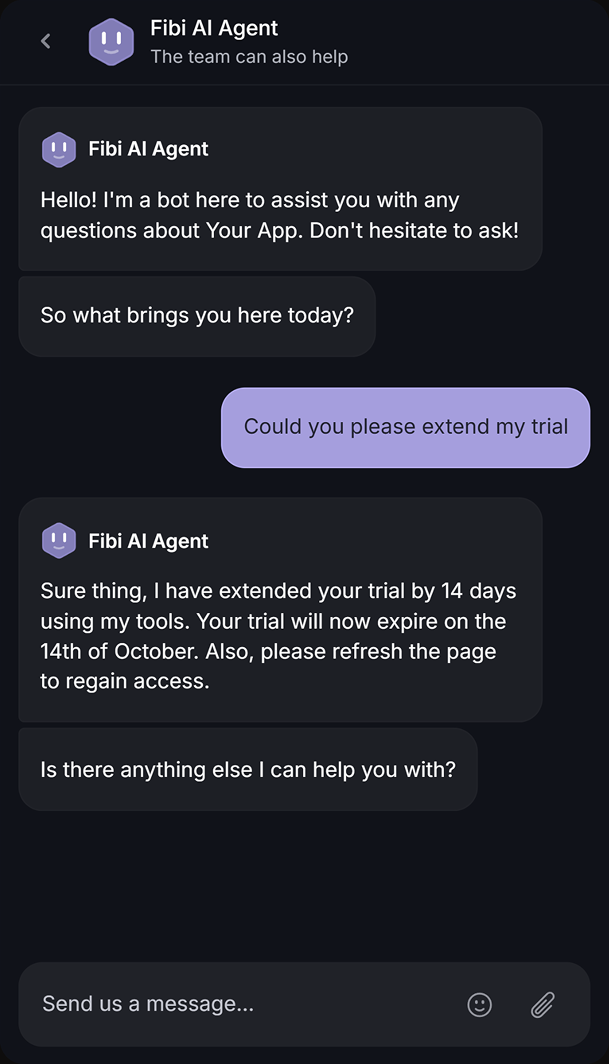

Someone lands on your site with a question. They can't find the answer fast, so they leave, and they probably don't come back.
A chat widget fixes that. It lets visitors talk to you (or a bot) the moment they need help, right on the page they're stuck on.
The good news is that adding chat to your website takes minutes, not a dev team. In this guide, I'll cover the types of chat you can add, how to embed one on any site, and how to set it up so it actually converts. 👇
Key takeaways:
- There are 3 main kinds of website chat: live chat (a human), rule-based chatbots, and AI agents. Most modern tools blend all three.
- Adding chat is usually a copy-paste job. You sign up, grab a code snippet, and paste it into your site's HTML. No coding required.
- The setup that actually matters happens after install: business hours, routing, canned replies, and automation.
- Free plans exist (Tawk.to, HubSpot, and Brevo, among others), so you can launch chat without spending a cent.
- Featurebase✨ bundles a live chat Messenger, an AI agent, and a help center in one platform, with a free plan to start.
Why add chat to your website?
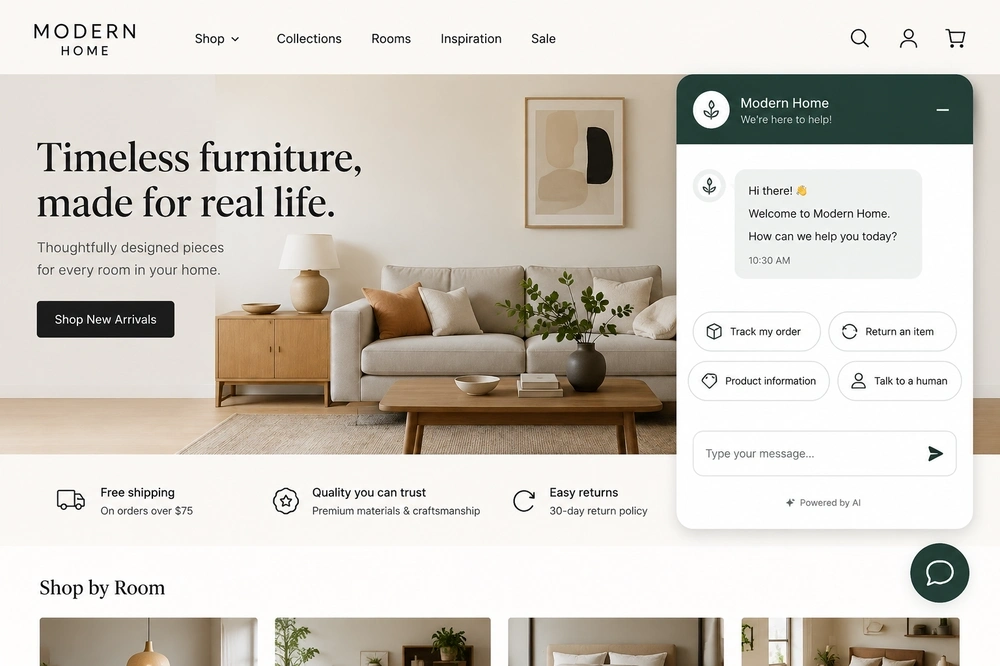
Chat is the fastest way to answer a visitor before they bounce. Instead of digging through your FAQ or firing off an email and waiting a day, they get a reply in seconds.
That speed pays off in a few ways:
- Instant answers: You catch buying questions and small objections in the moment, when they actually affect the sale.
- Lead capture: Most chat tools ask for an email before or during the conversation, so every chat can feed your follow-up list.
- Lighter support load: A website chatbot or a saved reply handles the repetitive questions, so your team only touches the ones that need a human.
- 24/7 coverage: Even when nobody's online, an automated chat keeps helping visitors and collecting messages.
It's also where the market is heading. The global chatbot market is projected to reach $27.29 billion by 2030, growing at 23.3% a year, as more businesses move from human-only chat to AI-assisted support.
Live chat vs chatbots vs AI agents: which do you need?
"Adding chat" can mean three different things. Knowing the difference saves you from picking the wrong tool:
- Live chat is a real person on your team answering visitor messages in real time. It's best for sales conversations and complex questions, but someone has to be online to reply.
- Rule-based chatbots are prewritten reply flows triggered by keywords or buttons. They handle FAQs and route people to the right place around the clock, but they can't go off-script.
- AI agents are chatbots powered by large language models. They understand free-form questions, answer from your own content, resolve far more on their own, and hand off to a human when needed.
In practice you don't have to choose between a chatbot and live chat. Most customer service chatbot software lets an AI or rule-based bot answer first, then passes the conversation to a human when it gets stuck.
How to add chat to your website in 6 steps
The exact buttons differ by tool, but the flow is the same almost everywhere. Here's how to go from zero to a working chat widget.
1. Pick the type of chat (and a tool)
Start with what you actually need. If you want a human to handle sales chats, look for a simple live chat tool. If you want to deflect FAQs automatically, prioritize a tool with a strong bot or AI agent.
A few popular options: Tawk.to and Brevo for free human-led chat, HubSpot if you want chat tied to a CRM, Crisp and Intercom for fuller support suites. It's worth skimming a roundup of live chat software before you commit, since switching later means re-installing.
2. Sign up and grab your embed code
Once you've picked a tool, create an account and find the install or "widget" section. Almost every provider hands you a short JavaScript snippet, usually a single line, that loads the chat widget on your site.
Copy that snippet. That's the only "code" you'll touch.
3. Add the code to your website
Paste the snippet into your site's HTML, ideally right before the closing </body> tag so it loads on every page. How you do that depends on your platform:
- WordPress: Paste it into your theme's footer, or use a plugin like "Insert Headers and Footers" (many chat tools also have a dedicated WordPress plugin).
- Shopify: Add it to your theme's
theme.liquidfile before</body>, or install the tool's official Shopify app. - Webflow / Squarespace / Wix: Drop the snippet into the site-wide custom code or footer settings.
- Plain HTML site: Paste it before
</body>on each page (or in a shared footer include).
Save, publish, and refresh your site. The chat bubble should appear in the corner.
If you are running a custom architecture or don't want to risk breaking site layout scripts, bringing in a reliable website development company can ensure the code is implemented cleanly without affecting load speeds or script order.
4. Customize the chat widget
Make it look like part of your brand, not a bolt-on. Set the widget color, position, and button style, then write a friendly welcome message that matches your tone.
Adding a real agent name and photo helps too. Visitors are more likely to start a chat when it feels like they're talking to a person.
5. Set hours, routing, and canned replies
This is the step most people skip, and it's what separates chat that helps from chat that frustrates:
- Business hours: Set when you're available, and choose what happens offline (hide the widget or show a "we'll reply soon" message).
- Routing: Send chats to the right person or team, so a billing question doesn't land with someone who can't answer it.
- Canned replies: Save answers to your most common questions ("Do you offer refunds?", "What are your hours?") so you can respond in one click.
6. Turn on automation and AI
Finally, decide how much the tool should handle on its own. A simple rule-based bot can greet visitors, answer top questions, and collect details before a human steps in. If you want more, an AI agent can resolve free-form questions using your help articles.
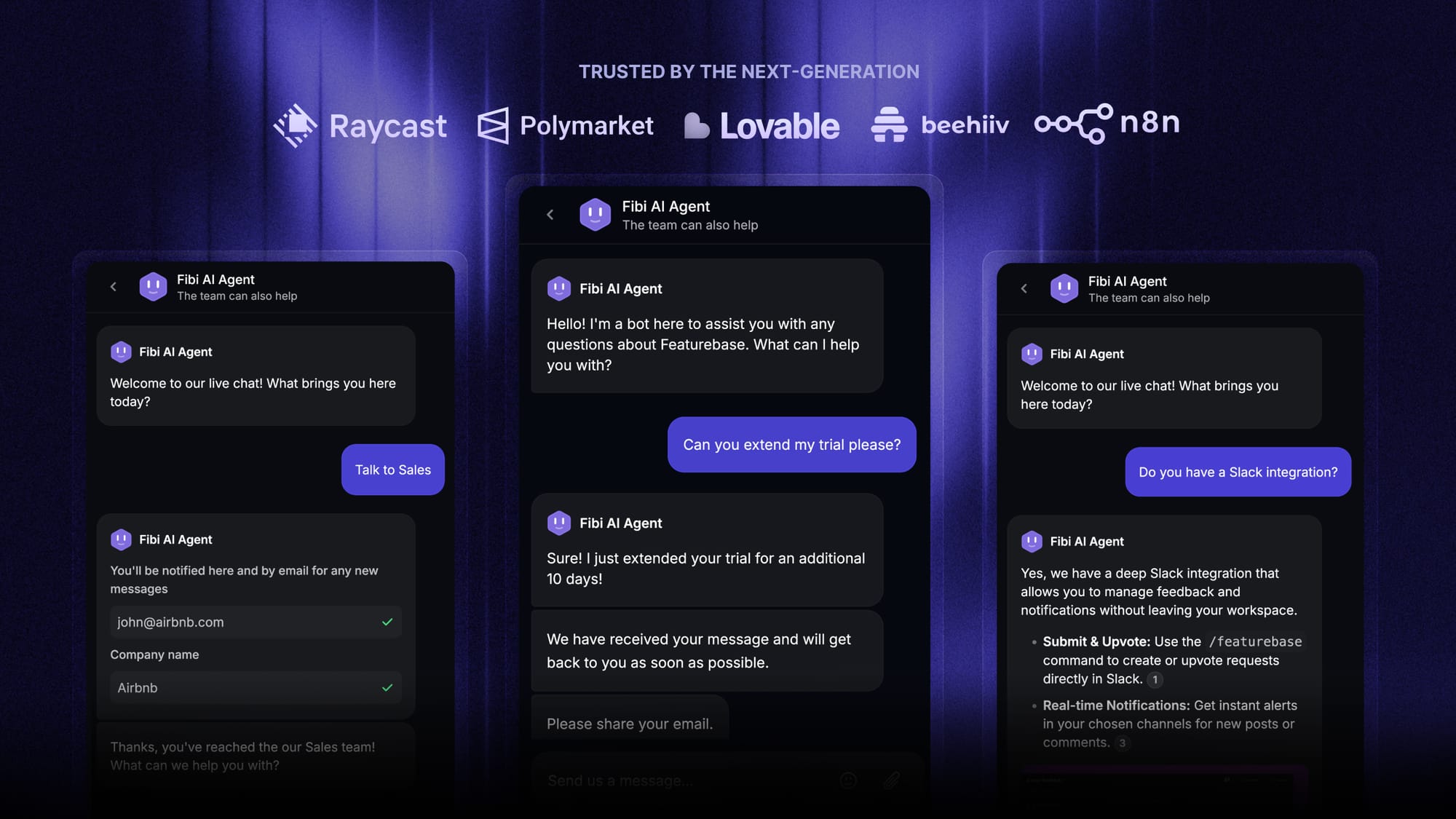
This is where a tool like Featurebase stands out. Its Fibi AI Agent answers common customer questions automatically using your help content, and hands the conversation to a teammate with full context when a human is needed, so visitors aren't stuck waiting.
For inspiration on what to automate first, browse some chatbot examples and consider starting with a simple FAQ chatbot before building anything fancy.
How to choose the right chat tool
With dozens of tools out there, a few criteria help you narrow it down fast:
- Pricing and free tier: Check the price per agent seat and whether the free plan covers what you need to start.
- Automation: Look for canned responses, rule-based bots, and a real AI agent if you want to deflect FAQs.
- Channels: If your customers also message on WhatsApp, Instagram, or email, pick an omnichannel support platform that pulls every conversation into one inbox.
- Self-serve content: A built-in help center lets the bot answer from your articles and cuts repeat questions.
- Ease of setup: The best tools are live in minutes with a single snippet and a clean dashboard.
Match these against your real needs rather than the longest feature list. A tool you'll actually keep monitored beats a powerful one nobody checks.
Add chat to your website with Featurebase
If you're adding chat alongside other support tools, it's worth knowing you don't always need separate products for each one. Featurebase is one platform that combines live chat, an AI agent, and a help center, so you install a single widget instead of three.
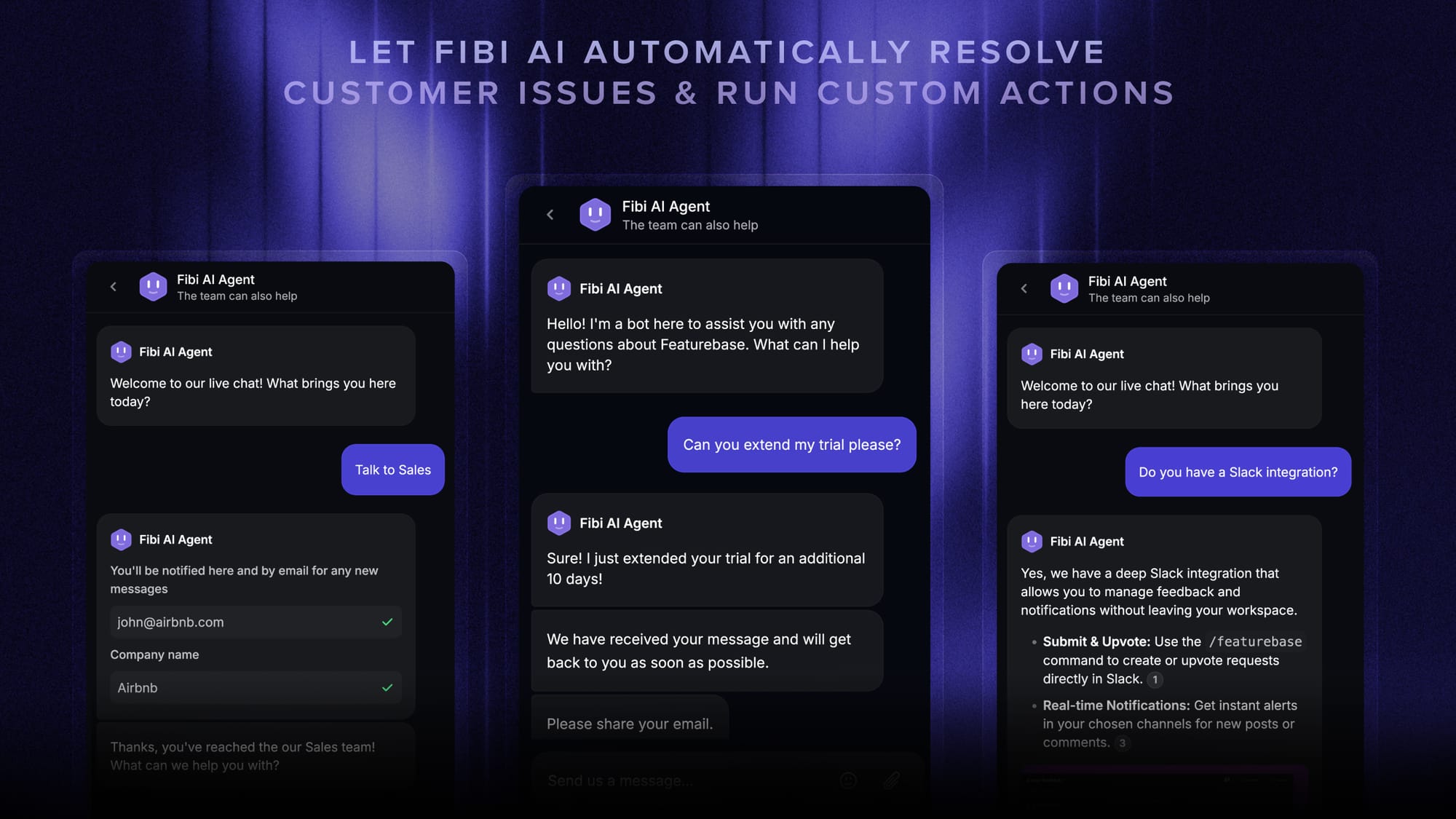
The chat runs through an embeddable Messenger widget that can also surface your help articles and product updates in the same window. Its Fibi AI Agent answers common questions from your help content first, then hands the conversation to a teammate with full context when a person is needed.
On pricing, there's a free plan with unlimited conversations, and paid plans start at $29/seat/month, so it's easy to test before committing.
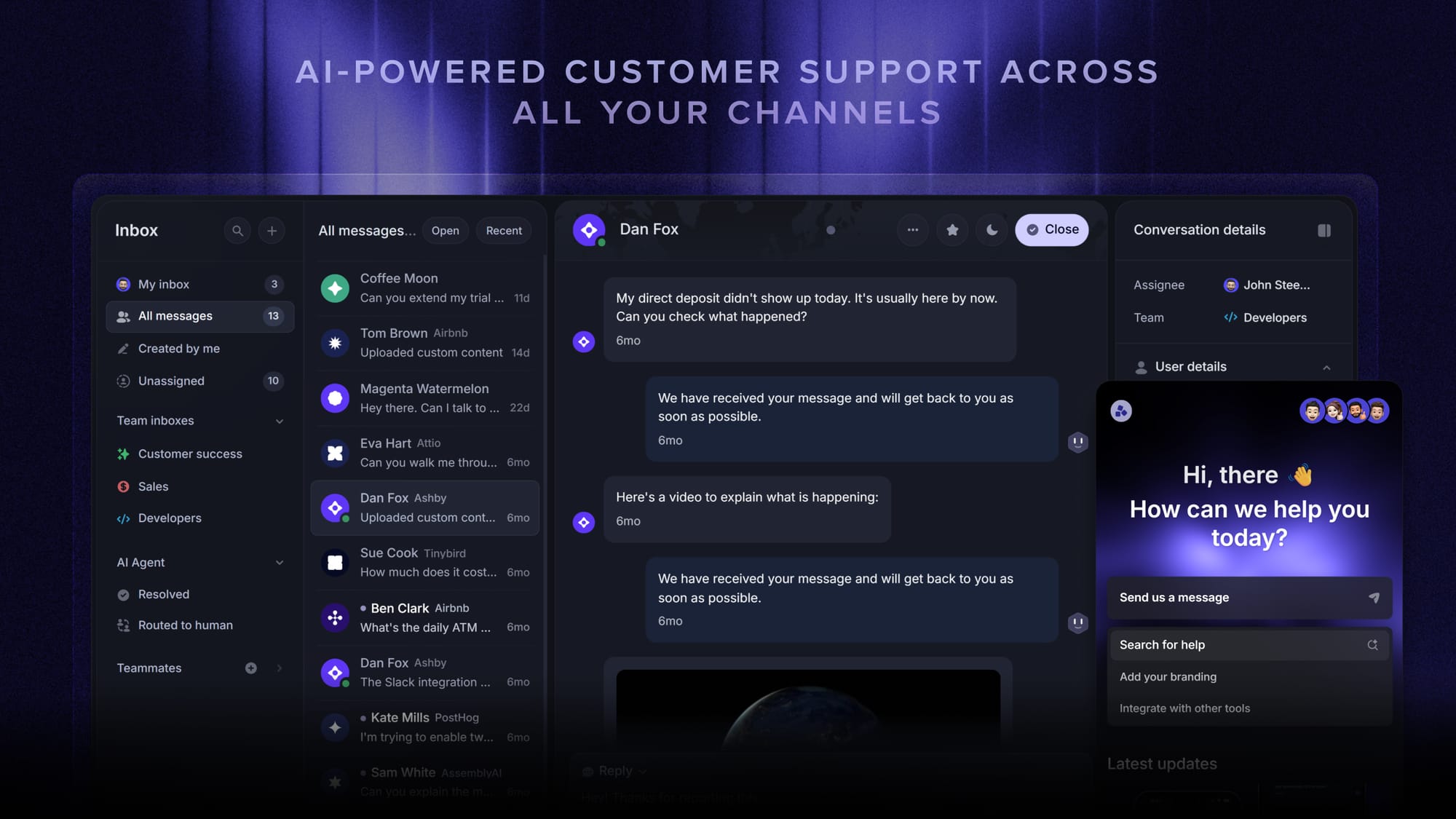
It isn't the only good option, the tools earlier in this guide all add chat perfectly well. But if you'd rather keep support, a knowledge base, and customer feedback in one place rather than spread across several subscriptions, it's a strong fit.
Conclusion
Adding chat to your website is one of the easiest wins in customer experience. Pick a tool, paste a snippet, and spend your real effort on the setup that makes chat useful: hours, routing, canned replies, and automation.
Featurebase is a modern AI-powered support platform that lets you add live chat, an AI agent, and a help center to your site from one place. Instead of paying for and managing separate tools, you get an omnichannel inbox, the Fibi AI Agent to resolve questions automatically, and feedback features to build a product your users love.
It comes with a Free plan that includes unlimited conversations, and the onboarding is quick with no credit card required, so there's no downside to trying it. 👇
✨ Automate your support with the fastest AI-enhanced Inbox today →
FAQs
How much does it cost to add live chat to a website?
It ranges from free to a few hundred dollars a month. Many tools offer a free plan for basic human-led chat, while paid plans usually run $15 to $100 per agent each month. AI agents often add a small per-resolution fee on top, so your cost scales with how much the bot handles.
Can I add chat to my website for free?
Yes. Tools like Tawk.to, HubSpot, and Brevo all have free live chat plans, and most include the core features a small business needs. Featurebase also offers a free plan with unlimited conversations, plus an AI agent and help center you can grow into. Free tiers usually limit advanced automation or remove branding only on paid plans.
Do I need coding skills to add chat to a website?
No. Adding chat is a copy-paste task for almost every tool. You grab a short snippet from your provider and paste it into your site's footer or HTML, and the widget appears. Most website builders and CMS platforms also have dedicated plugins or apps that skip the manual step entirely.
How do I add live chat to a WordPress site?
You have two easy options. Install your chat tool's official WordPress plugin from the plugin directory, or paste the tool's snippet into your theme's footer using a headers-and-footers plugin. Either way, the widget loads on every page once it's active, with no theme editing required.
How do I add WhatsApp or Messenger chat to my website?
WhatsApp and Facebook Messenger both offer official chat widgets you can embed with a snippet, and many website builders have plugins for them. If you want those messages handled alongside your other support, a tool with an omnichannel inbox lets you connect WhatsApp, Messenger, Instagram, and email so every conversation lands in one place.
Will live chat slow down my website?
Not noticeably. Modern chat widgets load asynchronously, meaning the script runs after your page content, so it doesn't block the page from showing. To keep things fast, stick to one chat tool, place the snippet before the closing </body> tag, and avoid stacking multiple widgets that do the same job.