Blog Customer ServiceShared Mailbox vs Distribution List: How to Choose
Shared Mailbox vs Distribution List: How to Choose
Shared mailbox vs distribution list: what each one is, the key differences, and when to use which - plus the Microsoft 365 and Google Workspace specifics.

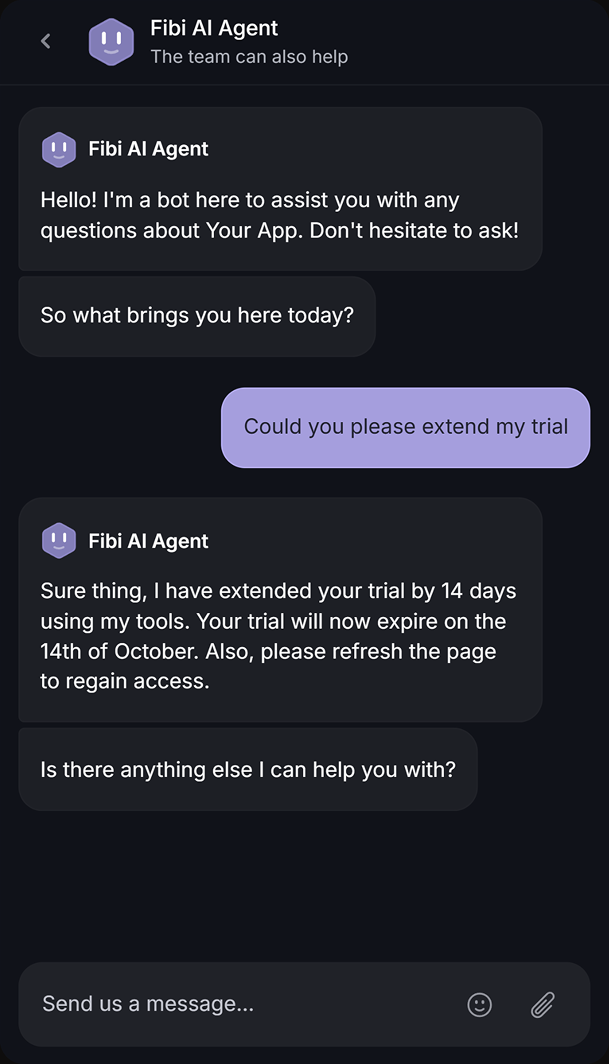

You set up support@ so your whole team could handle incoming email. Then 2 people reply to the same customer, or nobody does, and you realize the setup matters more than you thought.
The 2 options most teams reach for are a distribution list and a shared mailbox. They look similar, but they solve opposite problems.
This guide breaks down what each one is, how they differ, and when to use which - including the Microsoft 365 and Google Workspace specifics. 👇
Key takeaways
- A distribution list forwards email: it drops a copy of every incoming message into each member's personal inbox. There's no shared view and no record of who replied.
- A shared mailbox is one inbox a team manages together: everyone opens the same address, sees the same messages, and can tell what's already been handled.
- Use a distribution list for one-way broadcasts and a shared mailbox for anything that needs a coordinated reply.
- In Microsoft 365 and Google Workspace, a shared mailbox usually needs no extra license, so moving off a list is cheap.
- For busy support teams, a purpose-built shared inbox like Featurebase✨ adds assignment, SLAs, and reporting that a native shared mailbox leaves out.
What is a distribution list?
A distribution list is a single email address that forwards a copy of every message to a fixed set of people. In Microsoft 365 it's called a distribution group, but the behavior is the same everywhere: mail comes in, and each member gets their own copy in their own personal inbox.
The key thing to understand is that a distribution list creates no shared space. Each recipient handles their copy on their own. There's no central inbox, no assignment, and no way to see whether a teammate has already answered.
That makes distribution lists great for one direction. A weekly newsletter, a policy update, an all-staff announcement - anything where you're pushing information out and don't expect a coordinated reply.
The trouble starts when people do reply. Replies go back to the original sender, not to the whole list, so visibility stops the moment a conversation begins. 2 teammates can answer the same email without knowing, or each can assume the other has it and nobody responds at all.
What is a shared mailbox?
A shared mailbox is a single address, like support@company.com, that multiple people can open and manage together without sharing a password. Every incoming message lands in one centralized inbox, everyone with access sees the same thread, and replies go out from the shared address.
Because the inbox is shared, the whole team works from the same picture. You can see what's come in, what's been answered, and what's still waiting. Most setups also let you send as the shared address, so replies come from "Acme Support" rather than a personal account.
This is the model behind managing a team inbox: one queue, many people, coordinated responses. It's why any team that actually replies to email - support, sales, ops - tends to land on a shared mailbox rather than a list.
Shared mailbox vs distribution list: the key differences
The real difference isn't how mail is delivered. It's what happens after the email arrives.
| Feature | Distribution list | Shared mailbox |
|---|---|---|
| How mail is delivered | A copy to each personal inbox | One central inbox everyone opens |
| Shared visibility | No, each person sees their own copy | Yes, everyone sees the same messages |
| See who replied and when | No | Yes |
| Assign a message to a teammate | No | Yes, with a shared inbox tool |
| Response-time tracking | Individual only | Team-level |
| License needed (Microsoft 365) | No | No, up to 50GB |
| Best for | One-way broadcasts | Team replies and shared queues |
In short: a distribution list is a forwarder, and a shared mailbox is a workspace. If your team needs to coordinate who handles what, the shared mailbox is the right tool. If you only need to push information to a group, the list is enough.
When to use a distribution list vs a shared mailbox
The choice comes down to one question: does someone need to reply on behalf of the group?
When to use a distribution list
A distribution list is the right call when the communication is one-way and no coordinated response is expected. Typical cases include:
- Company-wide announcements: policy changes, org updates, or anything sent to allstaff@.
- Newsletters and product updates: a broadcast to a segment where replies aren't the point.
- Event or RSVP notices: where responses go somewhere else, not back to the group.
The moment any member needs to reply for the group, or you need to know whether something was handled, a distribution list becomes the wrong tool.
When to use a shared mailbox
A shared mailbox is the right call when your team receives email that needs a coordinated response. The clearest signals that you've outgrown a list:
- Customers email twice because no one replied the first time.
- 2 teammates send conflicting answers to the same person.
- A manager can't tell who handled a specific request or account.
- Response times are inconsistent and impossible to measure.
Any customer-facing team runs into these fast, which is why customer service email software is built around the shared-inbox model rather than the list.
Can you use both?
Yes, and many teams do. A common setup pairs a shared mailbox for external, customer-facing email (support@, sales@, info@) with distribution lists for internal broadcasts (allstaff@, announcements@).
They aren't mutually exclusive. Match the tool to the traffic: shared mailbox for anything that needs coordination and tracking, distribution list for one-way sends. You can even add a shared mailbox as a member of a distribution list, so a broadcast address funnels into one monitored inbox.
Shared mailbox vs distribution list in Microsoft 365 and Google Workspace
The concepts are universal, but the terminology and setup differ by platform.
Microsoft 365 and Outlook
In Microsoft 365, a distribution list is called a distribution group, and it behaves exactly as described: mail is forwarded to each member's personal inbox with no shared view. A shared mailbox is a separate object that gives several people access to the same inbox, shared sent items, and an optional shared calendar.
In Outlook the difference is visible right away. A shared mailbox shows up as its own folder in your left navigation pane, and everyone sees the same messages and history. A distribution group has no folder at all - it just forwards. Shared mailboxes under 50GB don't need a separate license, which makes the upgrade from a group cheap.
Google Workspace
Google uses different names for the same ideas. A standard Google Group is the equivalent of a distribution list, while a shared mailbox is achieved through Gmail delegation or a Google Collaborative Inbox. The Collaborative Inbox adds assignment, status tracking, and shared visibility that a plain Google Group can't provide.
Where Microsoft 365 Groups fit
Microsoft 365 offers a third option that muddies the picture: Microsoft 365 Groups. A Group gives you a shared inbox plus a shared calendar, a SharePoint site, and Planner, and it's designed for ongoing collaboration between a set of people rather than for fielding external email.
The trade-off is that a Microsoft 365 Group requires a license, where a shared mailbox does not. For most teams that just need to work a shared support or billing address, a shared mailbox is the simpler and cheaper starting point.
When a basic shared mailbox isn't enough
A native shared mailbox in Outlook or Gmail fixes the visibility problem, but only up to a point. Once volume climbs, its limits start to show.
There's no real assignment, so teams fall back on manual labels or informal "I've got this one" messages to avoid collisions. There's no built-in way to see who's overloaded or which emails have gone unanswered across the team. And there's no response-time tracking, so you can't tell whether you're hitting your service targets or quietly missing them.
That's the point where teams move to dedicated shared inbox software - or, if requests need formal tracking, an email ticketing system. These tools keep the one-address, one-team model but layer on assignment, collision detection, and reporting.
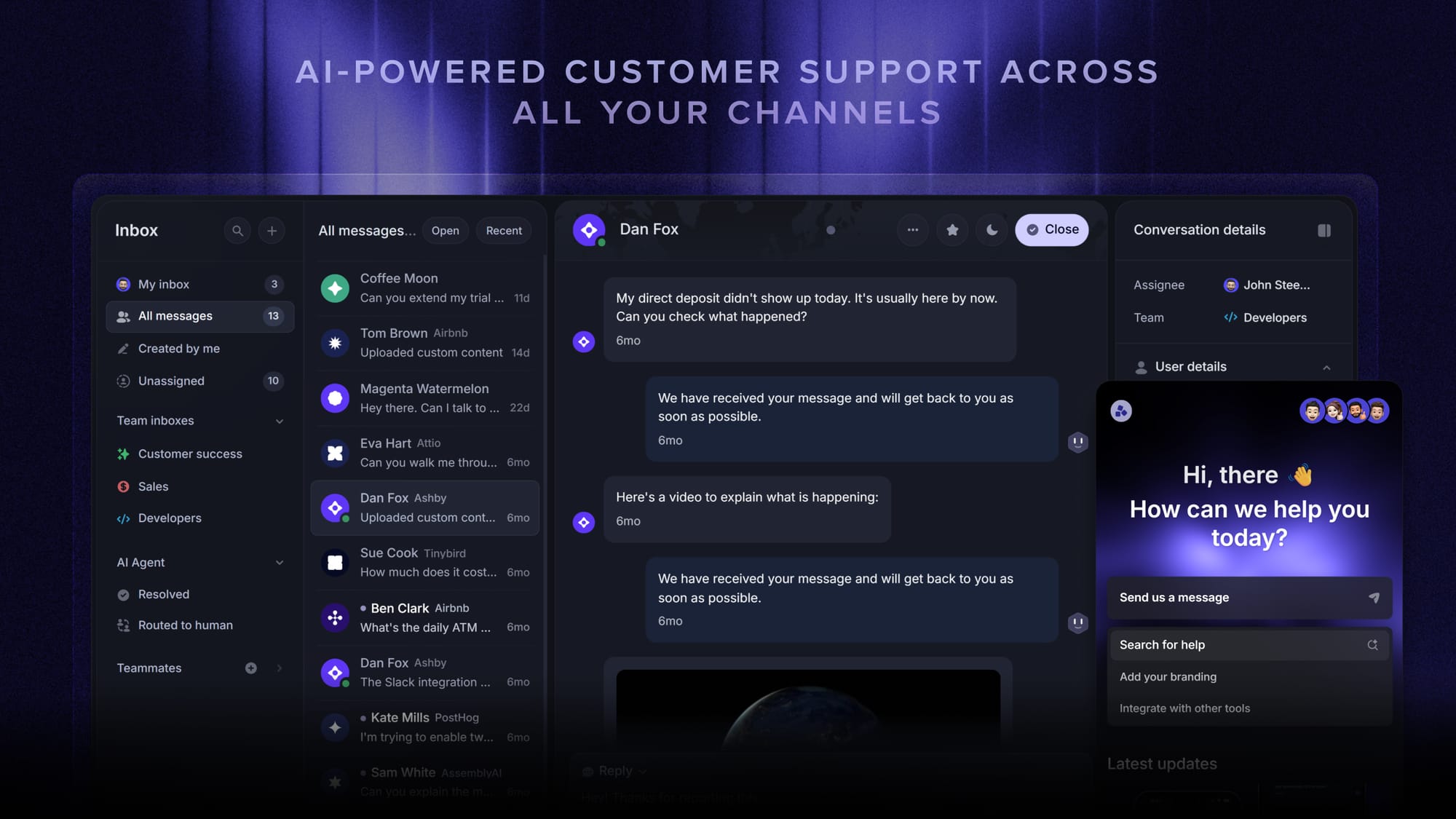
With Featurebase, for example, you can close each of those gaps without leaving the shared-inbox model: assignment gives every conversation one clear owner, shared visibility shows who's already replying so nobody doubles up, and SLA tracking tells you whether you're hitting your targets. A few of the features that make that work:
- Omnichannel inbox – Handle email, live chat, and Slack conversations from one shared view
- Assignment & auto-reassign – Hand a conversation to a specific teammate so nothing gets double-answered
- Team Inbox reporting – See workload across the team and which emails are still unanswered
- SLAs – Track response times so you hit your targets instead of quietly missing them

Resolve 70% of customer requests with AI
Automatically resolve customer issues & cut down support loads for your team
Conclusion
A distribution list and a shared mailbox aren't competing versions of the same thing. A list broadcasts, a mailbox collaborates. If your team only pushes information out, a distribution list is simple and free. The moment you need to reply, coordinate, and measure, a shared mailbox is the answer - and a native one is a fine place to start.
Featurebase is a modern AI-powered support platform that turns a shared address into a real team workspace. It brings email, live chat, and Slack into one omnichannel inbox with assignment, SLAs, an AI agent, and a built-in help center, so your team can manage a shared mailbox without ever losing track of who's replying.
There's a free plan and onboarding takes minutes, so there's no downside to trying it. 👇
✨ Automate your support with the fastest AI-enhanced Inbox today → Get started with Featurebase for free

FAQs
What are the disadvantages of a shared mailbox?
The main drawbacks show up at scale. A native shared mailbox in Outlook or Gmail has no true assignment, so teams rely on labels or verbal handoffs to avoid 2 people answering the same message. It also lacks team-level response-time tracking, and Outlook's shared mailbox support on mobile is limited. Busy teams usually solve this by moving to dedicated shared inbox software that adds assignment, collision detection, and reporting.
Which is better for customer support, a shared mailbox or a distribution list?
A shared mailbox, almost every time. Support means replying, coordinating, and measuring response times, and a distribution list does none of those - it just forwards copies to individual inboxes. A shared mailbox gives the team one queue with shared visibility, and tools like Featurebase add assignment and SLA tracking on top so requests don't fall through the cracks.
Can you convert a distribution list to a shared mailbox?
Not with a single button - they're different types of objects. The practical path is to create a new shared mailbox, point your team and senders to it, and retire the distribution list once the switch is complete. If the old address matters, you can keep it working by forwarding it into the new shared mailbox during the transition.
What's the difference between a shared mailbox and a Microsoft 365 Group?
A shared mailbox is a single inbox several people manage together, and it needs no license up to 50GB. A Microsoft 365 Group adds a shared calendar, a SharePoint site, and Planner for ongoing collaboration, but it requires a Microsoft 365 license. For fielding email to a shared address, the shared mailbox is simpler and cheaper. A Group makes more sense when a set team needs a full shared workspace.
Does a shared mailbox need a separate license in Microsoft 365?
No. Shared mailboxes up to 50GB don't require their own user license and are included on most Microsoft 365 business plans at no extra cost. You only need to assign a license if the mailbox exceeds the storage limit or needs certain add-on features like an archive.
How can you tell if an address is a distribution list or a shared mailbox?
In Outlook, a shared mailbox appears as its own folder in your navigation pane with visible inbox and sent items, while a distribution list has no folder - mail just lands in your personal inbox. If you're an admin, the clearest check is the Microsoft 365 admin center, where distribution groups and shared mailboxes are listed separately under groups.