Blog Customer ServiceCanned Responses: 20 Examples and How to Use Them
Canned Responses: 20 Examples and How to Use Them
Canned responses save your support team hours every week. Here are 20 ready-to-use examples, plus how to use them without sounding robotic.

Your support team answers the same 20 questions every single day. "Where's my order?" "How do I reset my password?" "Can I get a refund?" Typing those replies from scratch, over and over, is where the hours quietly disappear.
Canned responses fix that - if you build them right. Done well, they cut your reply time without making customers feel like they're talking to a robot.
In this guide, I'll walk you through what canned responses are, share 20 examples you can copy today, and show you how to use them so they still feel personal. 👇
Key takeaways
- Canned responses are pre-written replies you save once and reuse for common questions, so your team stops retyping the same answers all day.
- They save time and keep answers consistent, which is especially valuable when several agents handle the same queue.
- The best ones are personalized, not generic. A canned response should be a starting point you tweak, not a wall of copy-paste text.
- Variables, keyboard shortcuts, and AI turn a good template into a fast one, filling in names and drafting replies from context automatically.
- Featurebase✨ lets you save canned responses as macros inside a modern support inbox, with dynamic variables and AI-drafted replies built in.
What is a canned response?
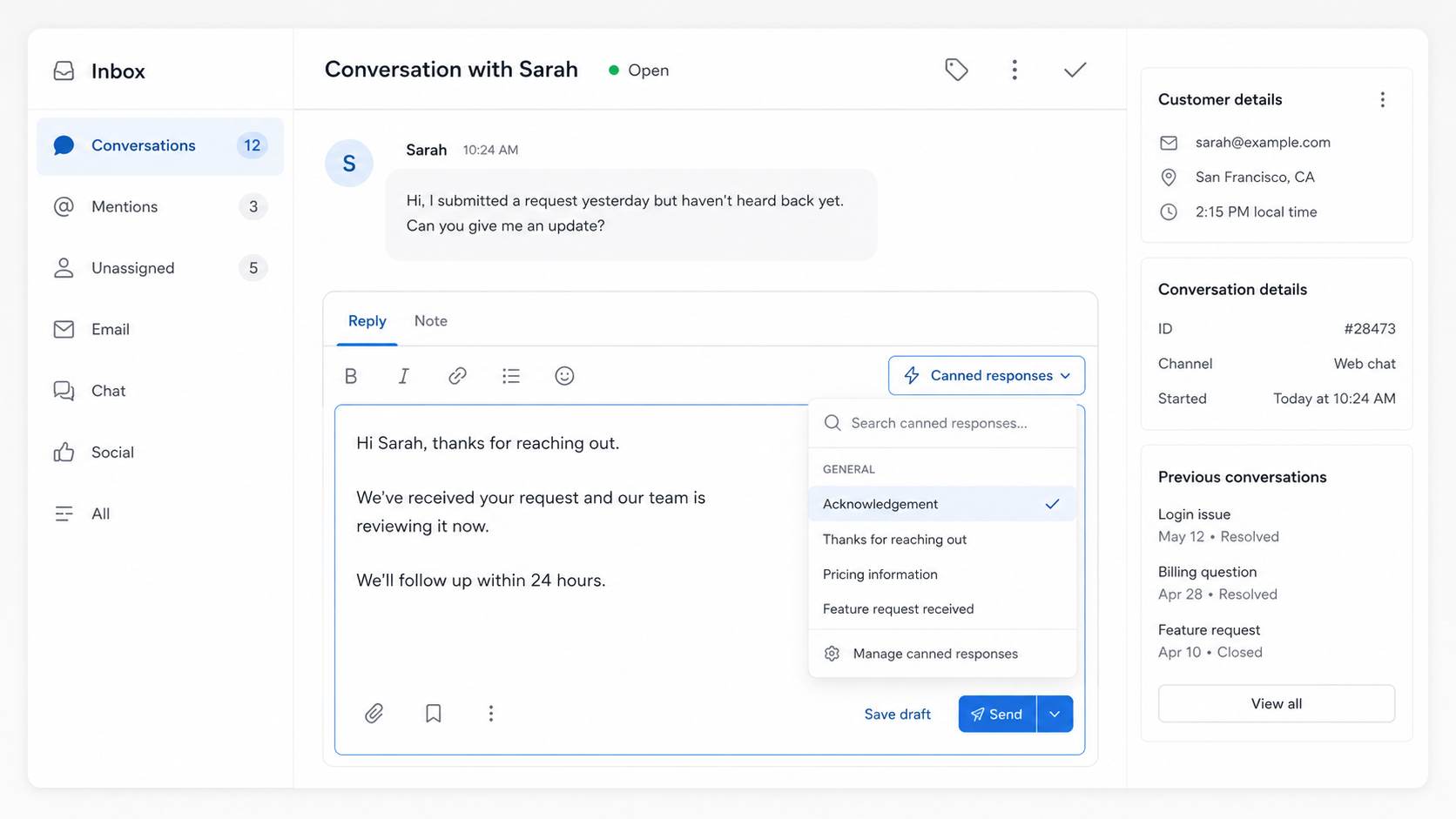
A canned response is a pre-written, reusable reply that your team saves once and inserts into a conversation with a click or a keyboard shortcut. Instead of typing the same answer for the hundredth time, you pull up a saved version and send it, usually after a quick tweak.
You'll also hear them called saved replies, quick replies, macros, or templates depending on the tool. The idea is the same: capture your best answer to a common question once, then reuse it everywhere.
Canned responses work across every channel your team uses, from live chat and email to social DMs. They're the written cousin of live chat scripts and customer service phrases, just saved and reusable rather than typed fresh each time.
Canned responses vs. auto-replies
These two get mixed up constantly, but they aren't the same thing:
- A canned response is a template you insert manually. A human reads the message, picks the right reply, personalizes it, and hits send. The person stays in the loop.
- An auto-reply fires automatically based on a trigger, like an out-of-office message or a "we got your email" confirmation. No human decides whether it fits.
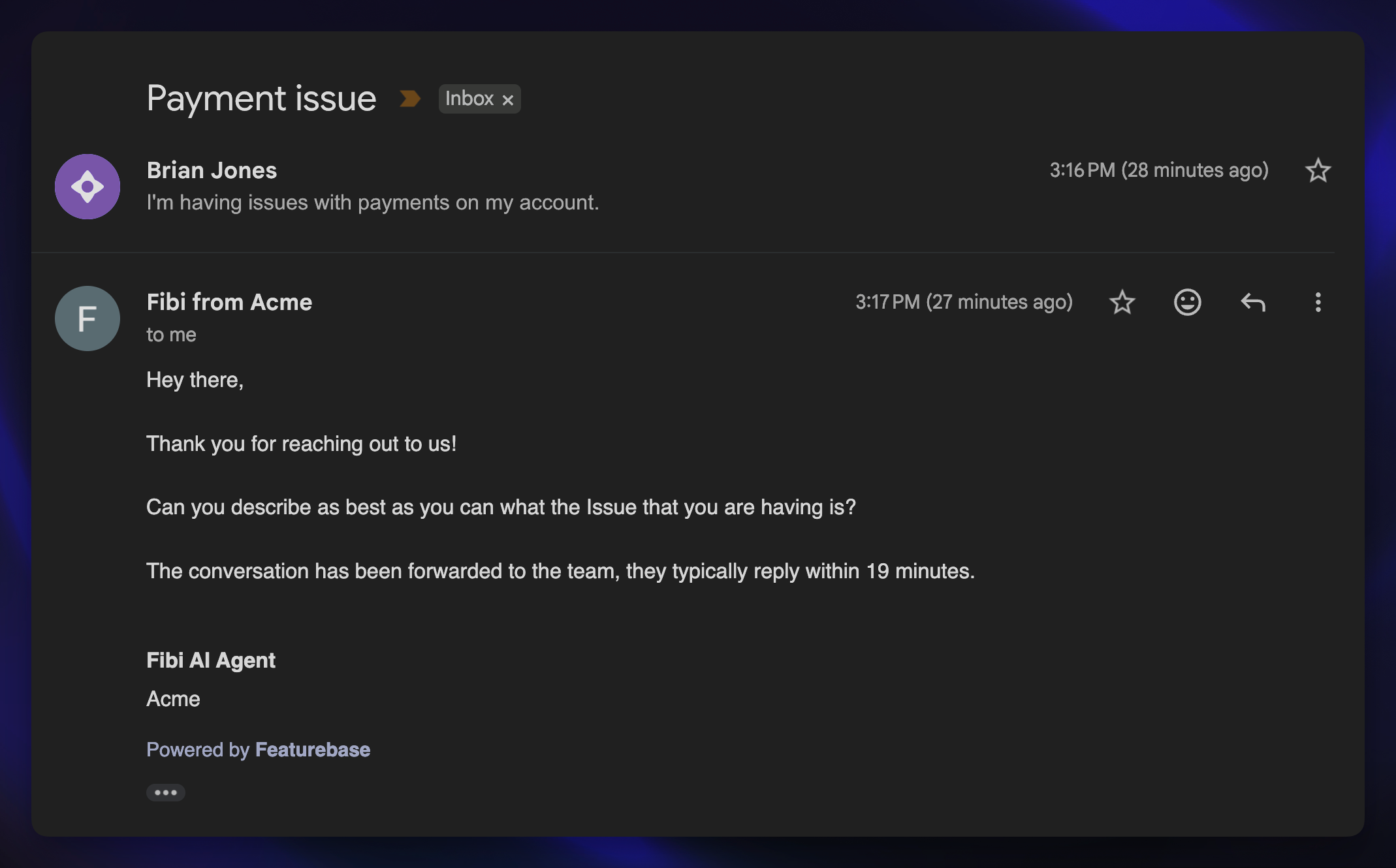
The difference matters because auto-replies remove judgment from the equation. That's fine for a simple "we received your request" acknowledgement, but risky for anything that needs a real answer. Most teams use a handful of auto-replies and a much larger library of canned responses.
Why customer support teams use canned responses
Speed is the obvious win, but it isn't the only one. Here's what canned responses actually do for a support team:
- Faster replies: Inserting a saved answer takes a second, versus a minute or more of typing. Multiply that across a full queue and you get hours back every week. That speed matters, because according to HubSpot research, 90% of customers say an immediate response is important when they have a support question, and 60% of them define "immediate" as 10 minutes or less.
- Consistency: Every customer gets the same accurate answer, no matter which agent picks up the chat. Your refund policy reads the same whether it comes from your most senior rep or someone in their first week.
- Fewer errors: A template gets written and proofread once, then sent correctly every time. That's a big deal for sensitive replies like billing, refunds, or technical steps where a typo causes real confusion.
- Faster onboarding: New hires inherit a library of approved answers instead of guessing at wording. The template library doubles as a training document, so they can handle common tickets from day one.
Canned responses are one of the simplest forms of customer service automation you can adopt, and they pay off immediately. They also free your team to spend real energy on the complicated cases that genuinely need it, which is where you want your best people focused. If you track customer service metrics, you'll usually see first-response time drop within the first week of rolling them out.
20 canned response examples for every support scenario
Here are 20 templates grouped into 6 common scenarios. Treat the bracketed bits like [name] and [ETA] as placeholders to fill in, and adjust the wording to match your brand voice.
Greeting and acknowledging customers
1. Greeting a new conversation
"Hi [name], thanks for reaching out! I'm [agent], and I'll be helping you today. Give me a moment to look into this for you."
2. Confirming you've received an issue
"Thanks for flagging this. I've got your message about [issue] and I'm looking into it now. I'll come back to you with an update within [ETA]."
3. Acknowledging a frustrated customer
"I completely understand the frustration, and I'm sorry for the trouble. Let's get this sorted out together. Can you share a bit more about what happened?"
Asking for more information
4. Requesting general details
"Happy to help with this. Before I dig in, could you send me [details you need] so I can find the fastest solution?"
5. Verifying an account
"To keep your account secure, I need to confirm a couple of details first. Could you reply with the email address on the account and [second verification detail]?"
6. Checking what's already been tried
"Thanks for the details so far. So I don't send you in circles, can you let me know which steps you've already tried and when the issue started?"
Giving updates and resolving issues
7. Letting them know you're on it
"Thanks for your patience. Our team is actively working on [issue], and I'll keep you posted. If you don't hear back within [ETA], feel free to nudge me here."
8. Confirming an issue is fixed
"Good news - the issue with [issue] is now resolved. You should be all set. If anything still looks off, just reply and I'll jump back in."
9. Walking through the steps
"Let's fix this together. Here's how: [step 1], [step 2], [step 3]. Give that a try and let me know if it works on your end."
10. Confirming a refund or credit
"I've processed your [refund/credit] of [amount] for [reason]. It should land in [X-Y business days] via [payment method]. You'll get a confirmation email once it clears."
Refunds, cancellations, and saying no
11. Handling a cancellation
"I've gone ahead and canceled your subscription, no problem at all. If you're open to it, I'd love to know what led to the decision so we can improve."
12. Saying no to a discount, politely
"Thanks for asking! We don't currently offer discounts beyond what's listed on our pricing page. What I can do is hop on a quick call to make sure you're getting the most value from your plan."
13. Declining an unavailable request
"I appreciate you asking about [request]. That's not something we're able to do right now, but here's an alternative that might work for you: [alternative]."
Handling feature requests and feedback
14. A feature that's already planned
"Great news - [feature] is already on our roadmap. I've added you to the list so you'll be the first to know when it ships. Anything else I can help with in the meantime?"
15. A feature that isn't planned (softening the no)
"Thanks for the suggestion. [Feature] isn't on our roadmap at the moment, but I've logged your request so the team can see the demand. If enough people ask, it moves up the list."
16. Asking for feedback or a review
"So glad I could help! If you've got a spare minute, a quick review would mean a lot to our team: [link]. No pressure at all."
Escalating, following up, and closing
17. Escalating to a specialist
"Thanks for your patience on this. I want to make sure you get the best possible answer, so I'm passing this to our [team] who specialize in [area]. They'll follow up within [ETA]."
18. Following up on an open issue
"Just checking in on [issue]. Is everything working as expected on your side? If so, I'll mark this as resolved. If not, I'm still here to help."
19. Explaining an outage
"We're aware of an issue affecting [product/feature] right now, and our team is on it. We expect it back to normal by [ETA], and I'll let you know the moment it's fixed. Sorry for the disruption."
20. Closing the conversation
"Looks like we're all set! I'll close this out, but feel free to reply anytime if something else comes up. Thanks for reaching out."
[illustration here]
How to write canned responses that don't sound canned
A bad canned response is worse than no template at all. Nothing kills rapport faster than a customer realizing they got a copy-paste wall of text. These habits keep your saved replies feeling human:
- Personalize every send: Use the customer's name and reference their specific issue. A template is the skeleton, and the personal details are what make it read like a real reply. Personalized customer service is the difference between "helpful" and "robotic."
- Keep it concise: Say what you need to say and stop. Long, padded responses are harder to read and feel more scripted, not less.
- Match the emotion: When a customer is angry or anxious, lead with empathy before the template does its work. If the message is emotional or unusual, rewrite the opener or skip the template entirely.
- Read it out loud first: If it sounds like a brochure when you say it, it'll read like one too. If it sounds like something you'd actually say, it's ready.
The golden rule: a canned response is a default, not a script you're locked into. The teams who treat templates as a helpful starting point sound far more human than the ones who treat them as a rule.
Managing canned responses at scale (variables, shortcuts, and AI)
A library of 15 well-organized templates beats 200 you can't find. Once you've got more than a handful, three things separate a fast setup from a frustrating one:
- Dynamic variables: Instead of manually typing names, a variable like
{first_name}fills in the customer's details automatically. Always set a fallback (like "there") so a missing name never produces an awkward "Hi ,". - Keyboard shortcuts: The best tools let you trigger a template with a keystroke and a couple of letters, right inside the reply box. No hunting through menus.
- AI-assisted drafting: Newer support tools draft a reply from the conversation, your help center, and past answers, then hand it to an agent to review and send. Short reusable snippets become the building blocks the AI assembles from.
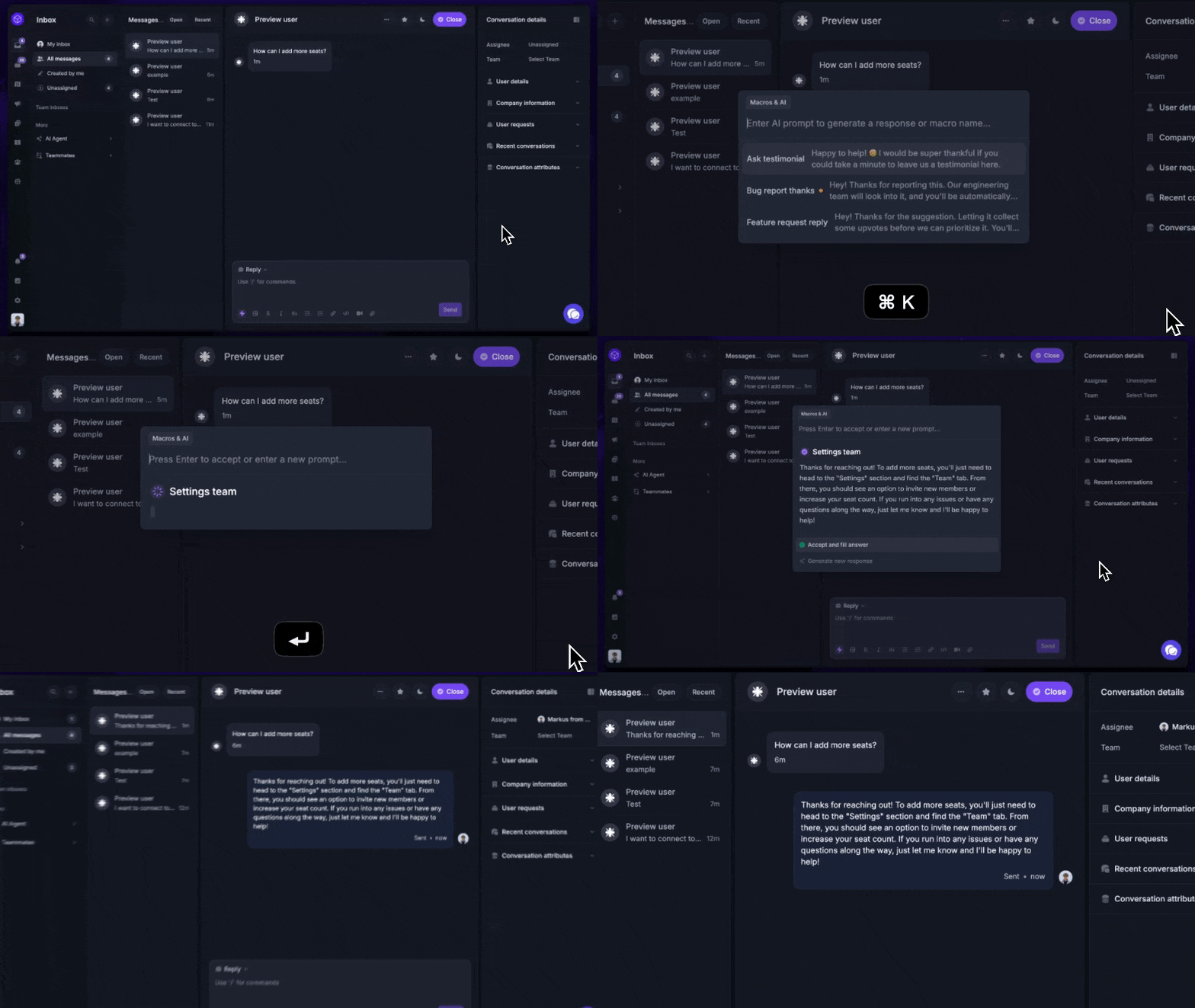
This is where a dedicated support inbox earns its keep. In Featurebase, canned responses live as macros - reusable message templates you pull into any reply in a couple of keystrokes. You can drop in dynamic variables like the customer's first name (with a fallback so no one ever gets a "Hi ,"), and let AI draft a first version from the conversation and your help center, so agents edit instead of writing from scratch.
If your team still runs canned responses out of a spreadsheet or scattered across customer service email software, moving them into a shared inbox is usually the single biggest speed upgrade you can make.
Bring your canned responses into a modern support inbox
If you're managing canned responses across a growing team, it helps to have them built into the same place you actually answer customers, not bolted on from a separate app.
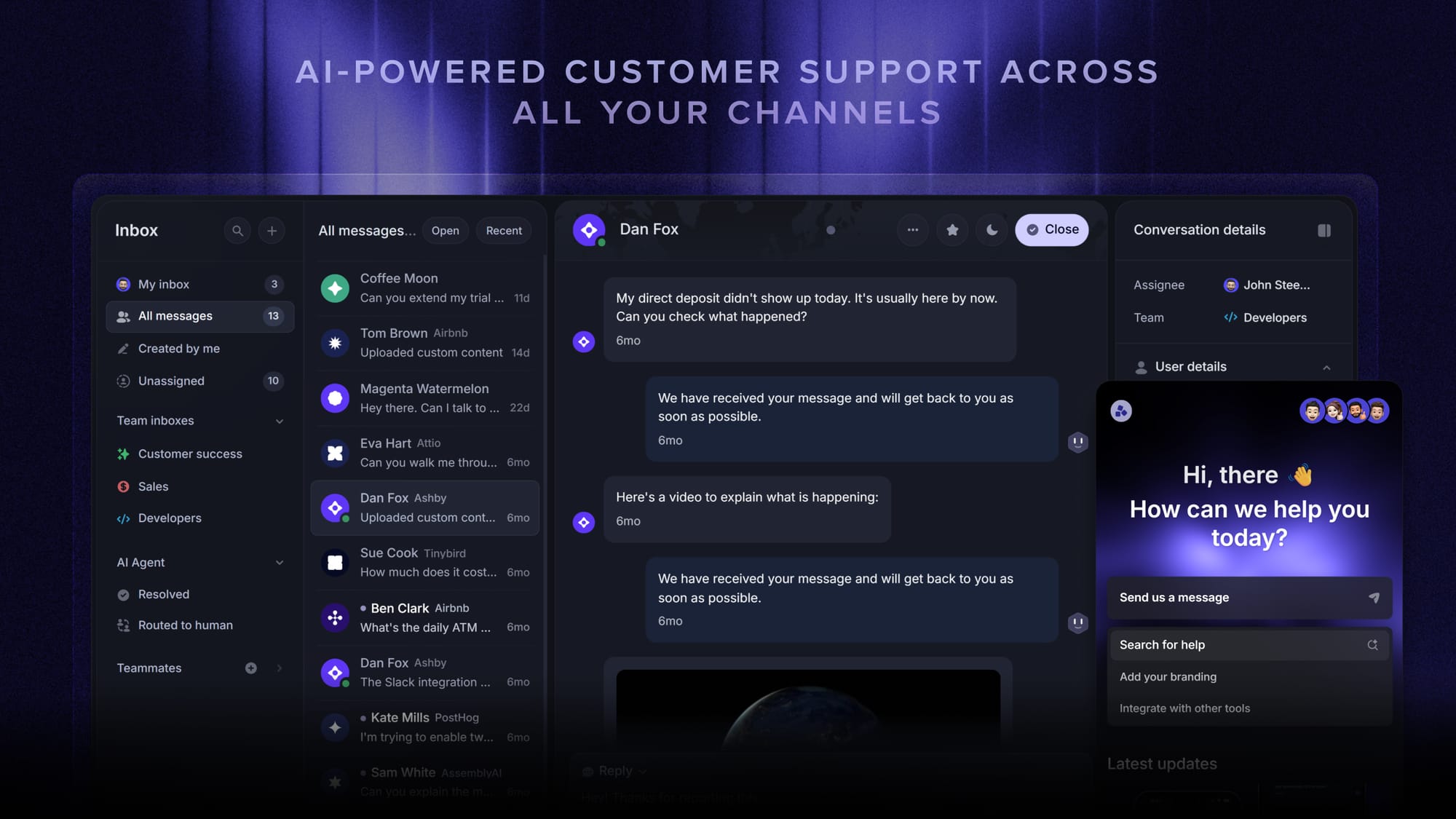
Featurebase is a modern AI customer support platform for product-led SaaS. It combines AI-powered support, help center, and feedback management into a single platform for startups that want all their customer-facing tools in one place. Featurebase is loved by thousands of support teams from companies like Lovable, Raycast, and n8n. 💫
Top features:
- Omnichannel inbox – Manage live chat, email, and Slack conversations from one AI-powered view
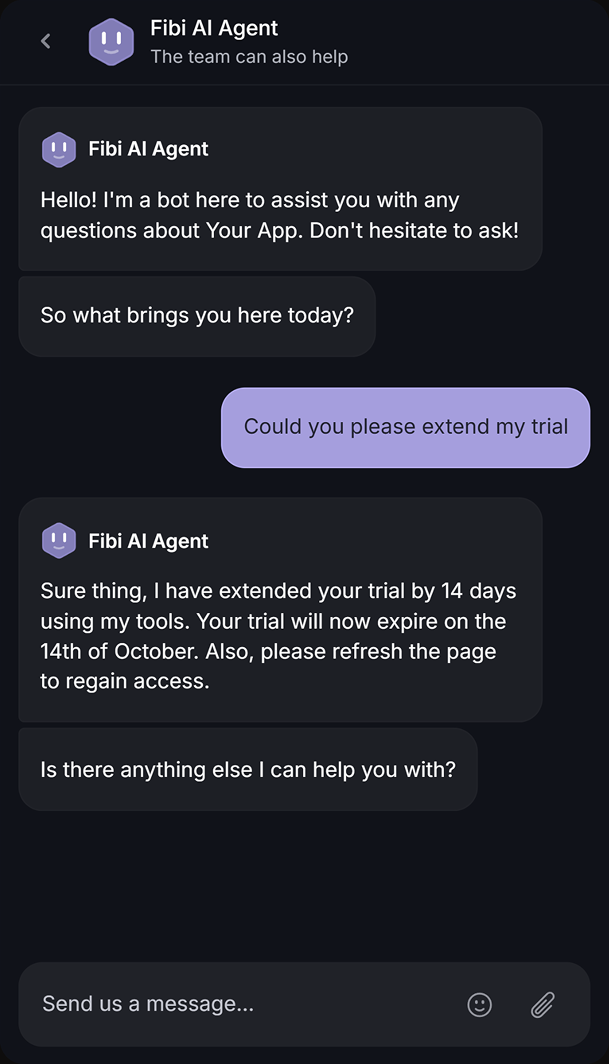
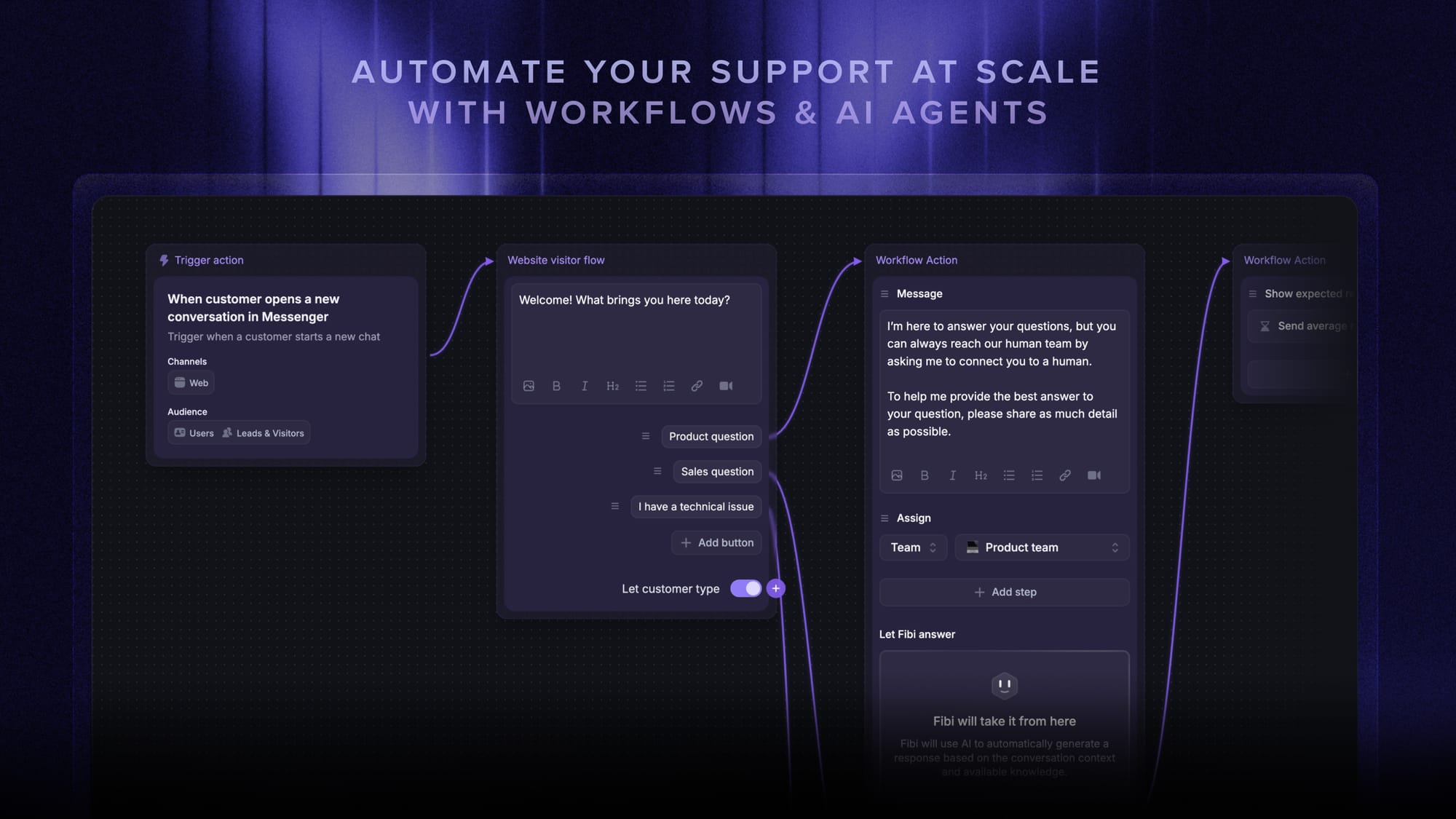
- Fibi AI Agent - Resolve customer issues on autopilot & run custom actions like trial extensions and refunds
- Macros & dynamic variables – Save reusable canned responses and personalize them with variables like the customer's name
- AI replies – Instantly draft responses using customer context, your help center, and past replies, in your tone of voice
- Help center with AI search – Provide instant, multilingual self-serve answers
- Workflows & automations – Auto-assign tickets, route conversations, collect customer data, and more
- AI Copilot – Help your agents answer customers faster with AI Copilot that uses your internal knowledge
- Service Level Agreements – Track SLAs to make sure your team responds to customers on time, every time
- Mobile app – Respond to customers, receive notifications, and unblock users on the go
- Integrations – Connects with Slack, Linear, Jira, HubSpot, and more
Pricing: Free plan available with unlimited conversations. Paid plans start at $29/seat/month with $0.49 per AI resolution.
Featurebase covers all the basic support features that legacy platforms do, but with a much more modern approach. It comes with AI automations, a mobile app, and multiple channels (email, live chat, Slack, etc.).

Resolve 70% of customer requests with AI
Automatically resolve customer issues & cut down support loads for your team
Conclusion
Canned responses are one of the highest-leverage habits a support team can build. They shave time off every repetitive reply, keep your answers consistent, and free your team to focus on the hard problems that actually need a human.
The trick is to treat them as a starting point, personalize every send, and lean on variables and AI to keep them fast. Start with the questions you answer most, write your best version once, and grow the library from there.
With Featurebase, you can save canned responses as macros right inside a modern AI-powered support inbox, complete with dynamic variables and AI-drafted replies. There's a free plan and onboarding takes minutes, so there's no downside to trying it. 👇
✨ Automate your support with the fastest AI-enhanced Inbox today → Get started with Featurebase
FAQs
What is the difference between a canned response and a template?
In practice, very little. "Canned response" usually refers to a shorter, ready-to-send reply like a greeting or a one-line answer, while "template" often implies a longer, full-message format you customize before sending. Different tools use different words for the same idea - Front calls them snippets, Help Scout calls them saved replies, Gmail calls them templates. Pick whichever term your tool uses and don't overthink it.
Are canned responses the same as auto-replies?
No. A canned response is a template you insert manually, so a human still reads the message and decides the reply fits before sending. An auto-reply fires automatically based on a trigger, like an out-of-office message, with no human review. Most teams use a small number of auto-replies and a much larger library of canned responses.
Are canned responses unprofessional?
Not if you use them well. A canned response is a starting point, not a final draft. When you personalize it with the customer's name and their specific issue, it reads as fast and helpful, not robotic. Customers care about getting an accurate answer quickly, and they rarely notice or mind that part of it was pre-written.
How many canned responses should a support team have?
Probably fewer than you think. Most teams over-build their library before they understand which templates they actually use. A set of 15 to 20 well-named, well-organized responses is more useful than 200 you can't find. Start with your most common questions and add new templates only as clear patterns emerge.
Can you use canned responses in Gmail and Outlook?
Yes, both have a built-in version. Gmail offers Templates (formerly called Canned Responses), and Outlook has Quick Parts. Both work for one person with a few saved replies, but neither supports dynamic variables or team sharing, so growing support teams usually outgrow them and move to a dedicated help desk or shared inbox.
Where can support teams save and manage canned responses?
Most modern help desks and shared inboxes let you store canned responses centrally and share them across the team. In Featurebase, for example, you save them as macros inside the support inbox, personalize them with dynamic variables, and trigger them with a keyboard shortcut while you reply, so the whole team works from the same approved answers.