How to Organize a Knowledge Base in 8 Steps
Learn how to organize a knowledge base in 8 practical steps, from information architecture and tagging to search and governance, so people actually find answers.


On this page
Create a beautiful AI-powered Help Center with Featurebase for free
A knowledge base that nobody can navigate is just a digital graveyard. The gap between one that quietly deflects tickets and one that gathers dust almost always comes down to a single thing: organization.
Most knowledge bases are built for storage, not for the way people actually search. This guide walks through 8 practical steps to organize yours, whether it is a customer-facing help center or an internal knowledge base for your team. 👇
Key takeaways
- Organize your knowledge base around how people search and the jobs they are trying to do, not around your org chart or file types.
- Keep the structure shallow and predictable: broad categories, a few subcategories, and articles, with no more than 3 levels deep.
- Consistent naming and metadata are what make content findable as the library grows.
- Treat search as the front door, not an afterthought, and write article titles the way users phrase their questions.
- Governance is the difference between a living resource and a stale one. Assign owners and review dates from day one.
- Featurebase✨ lets you build a public and internal help center with AI-powered search, so answers surface instantly, and your knowledge base stays easy to organize as it grows.
- Measure adoption with search success rate, self-service rate, and content freshness, then keep improving.
What it means to organize a knowledge base (and why it matters)
Organizing a knowledge base means shaping your content so a person can find the right answer in seconds, without scrolling, guessing, or asking a colleague. It covers the structure (how content is grouped), the metadata (how it is tagged and named), the search experience, and the governance that keeps everything accurate over time.
This matters more than most teams assume. Gartner found that 47% of digital workers struggle to find the information they need to do their jobs. On the customer side, Harvard Business Review reported that 81% of customers try to resolve issues themselves before reaching out to a live rep.
So the demand for self-service is already there. A disorganized knowledge base simply fails to meet it, pushing people back into your inbox and slowing everyone down. A well-organized one does the opposite: it deflects repeat questions, speeds up onboarding, and builds trust because people learn they can rely on it.
How to organize a knowledge base in 8 steps
The steps below build on each other. Start with who the knowledge base is for, get the structure right, then layer on tagging, search, and governance.
1. Define who it's for and what it should achieve
Start with people, not pages. Before you move a single article, get clear on who will use the knowledge base and what they are trying to accomplish.
A quick way to frame this is to answer 3 questions for each audience:
- Who are they: end customers, new hires, support agents, or a specific department like HR or IT. Each group searches differently and needs different content.
- What are they solving: password resets and billing questions look nothing like onboarding checklists or internal policy lookups.
- How will you measure success: fewer tickets, faster onboarding, higher self-service rates, or all three.
Your answers shape everything downstream: the tone, the structure, and even the access settings. A customer-facing help center and an internal knowledge base can share a platform, but they rarely share the same structure.
2. Audit and collect your existing content
With your audience defined, take stock of what you already have. Most teams are sitting on more documentation than they realize, scattered across docs, tickets, Slack threads, and people's heads.
Pull it all into one place and sort the most common questions first. You can find these fast by reviewing support tickets, talking to your agents, and looking at what customers search for most.
As you gather, sort each piece into 4 buckets:
- Keep: still accurate and actively used.
- Revise: useful but outdated or incomplete.
- Merge: duplicates or near-duplicates that should become one article.
- Archive: obsolete content that should come out of the main library.
This audit prevents you from rebuilding things that already exist and keeps your knowledge base lean from the start. It is also the perfect moment to spot gaps, the questions your users ask that nobody has documented yet.
3. Design a logical structure (information architecture)
This is the step that makes or breaks navigation. Information architecture is how you group content so people intuitively know where to look.
Group content by what people do, not by which team produced it. The most reliable pattern is a shallow hierarchy of broad categories, a few subcategories, and articles beneath them.
A few rules keep the structure usable as it scales:
- Limit the depth: keep it to 3 levels or fewer so nothing gets buried.
- Cap top-level categories: 5 to 10 is plenty. More than that and the homepage stops being scannable.
- Use familiar names: label categories with the words your users already use, not internal jargon.
- Link instead of duplicating: when content fits two places, put it in one and cross-link.
For a customer support knowledge base, broad categories like "Getting started," "Billing," and "Troubleshooting" work well. Whatever you choose, the logic should be obvious enough that a first-time visitor can predict where an answer lives. If you want inspiration, it helps to study a few knowledge base design patterns before you commit.
4. Set naming conventions and tag with consistent metadata
A clean structure still falls apart without consistent labeling. Metadata is what powers search and filtering once you have hundreds of articles.
Create a simple, documented tagging system and apply it to every article. Useful fields include topic, audience or role, product area, content type, and a review date. Keep a shared tag dictionary so contributors use the same terms instead of inventing their own.
Two habits keep tagging from turning into noise: assign ownership for each field, and avoid over-tagging. Three to 5 well-chosen tags per article beat a dozen vague ones. Consistent metadata is one of the most overlooked knowledge management best practices, and it pays off every time someone runs a search.
5. Write and format clear, scannable articles
Structure gets people to the right article. Formatting decides whether they actually get their answer once they arrive.
Write for the least technical user and keep articles focused on one question each. A few formatting habits do most of the work:
- Lead with the answer: open with a short summary so people confirm they are in the right place.
- Break it up: short paragraphs, bullet points, and numbered steps beat walls of text.
- Show, don't just tell: screenshots, GIFs, and short videos clarify anything visual.
- Stay consistent: the same tone, structure, and terminology across every article.
Templates are the easiest way to enforce this at scale. A shared set of formats for how-to guides, FAQs, and troubleshooting articles keeps quality even across many contributors. If you are starting from scratch, a library of knowledge base article templates gives you a head start.
6. Make search the front door
Even the best structure fails if people cannot search their way to an answer. Most users skip the navigation entirely and type into the search bar first, so treat it as the primary entry point.
Strong search comes down to a few things: clear, verb-led titles that match how people phrase questions, synonyms and tags for the terms users actually type, and results that prioritize fresh, verified content. It also helps to review your search logs regularly, especially the queries that return zero results, because those are your content gaps in plain sight.
This is where modern tooling earns its keep. With Featurebase, you can run a public and internal help center with AI-powered search that summarizes an answer right in the search bar, so users get a direct response in seconds instead of digging through a list of articles. It is a practical way to close the gap between "we have the answer documented" and "the customer actually found it." For more on where this is heading, see how an AI knowledge base changes self-service.
7. Set permissions and clear ownership
Access should help people work, not get in their way. The goal is to keep the right content open while protecting what genuinely needs restriction.
A sensible default is to start open and lock down only sensitive material like finance, legal, or HR policies. Group permissions by role so access maps to teams automatically, and review those permissions on a regular cadence to catch stale access.
Ownership matters just as much as access. Every category and article should have a named owner who is responsible for keeping it accurate. Clear ownership is what stops a knowledge base from slowly rotting once the initial launch energy fades.
8. Review, maintain, and measure
A knowledge base is never finished. Information changes constantly, and an article that was right last quarter can quietly become wrong.
Build a review rhythm: schedule regular content audits, verify accuracy, update what changed, and archive what no longer applies. Assign review dates so nothing sits unchecked for a year.
Then measure what is working so you know where to focus. A few metrics tell you almost everything:
- Search success rate: how often people find an answer on the first try.
- Self-service rate: how often users solve problems without opening a ticket.
- Content freshness: the share of articles reviewed in the last 6 months.
- Top zero-result searches: the queries that keep failing, which point straight to your next articles.
Pair the numbers with direct feedback, like a simple "was this helpful?" prompt at the end of each article, and you have a continuous loop for improvement. This ongoing cycle is the heart of any healthy knowledge management process.
Common knowledge base organization mistakes to avoid
Even well-intentioned knowledge bases fall into a few predictable traps. Watching for these keeps yours from becoming another cluttered archive:
- Organizing by team, not by task: mirroring your org chart forces users to know who owns an answer before they can find it. Structure around what people are trying to do instead.
- Folder sprawl: endless nested folders make everything harder to find. Keep the hierarchy shallow and lean on search.
- Inconsistent or missing tags: without a shared tagging system, content becomes impossible to filter as the library grows.
- No clear owner: when nobody is responsible for updates, articles go stale and trust erodes.
- Set-and-forget: skipping regular reviews is the fastest way to turn a useful resource into a liability.
Avoid these, and most of the hard work of organization takes care of itself. The right knowledge base software also makes several of them much easier to sidestep.
Organize your knowledge base with Featurebase
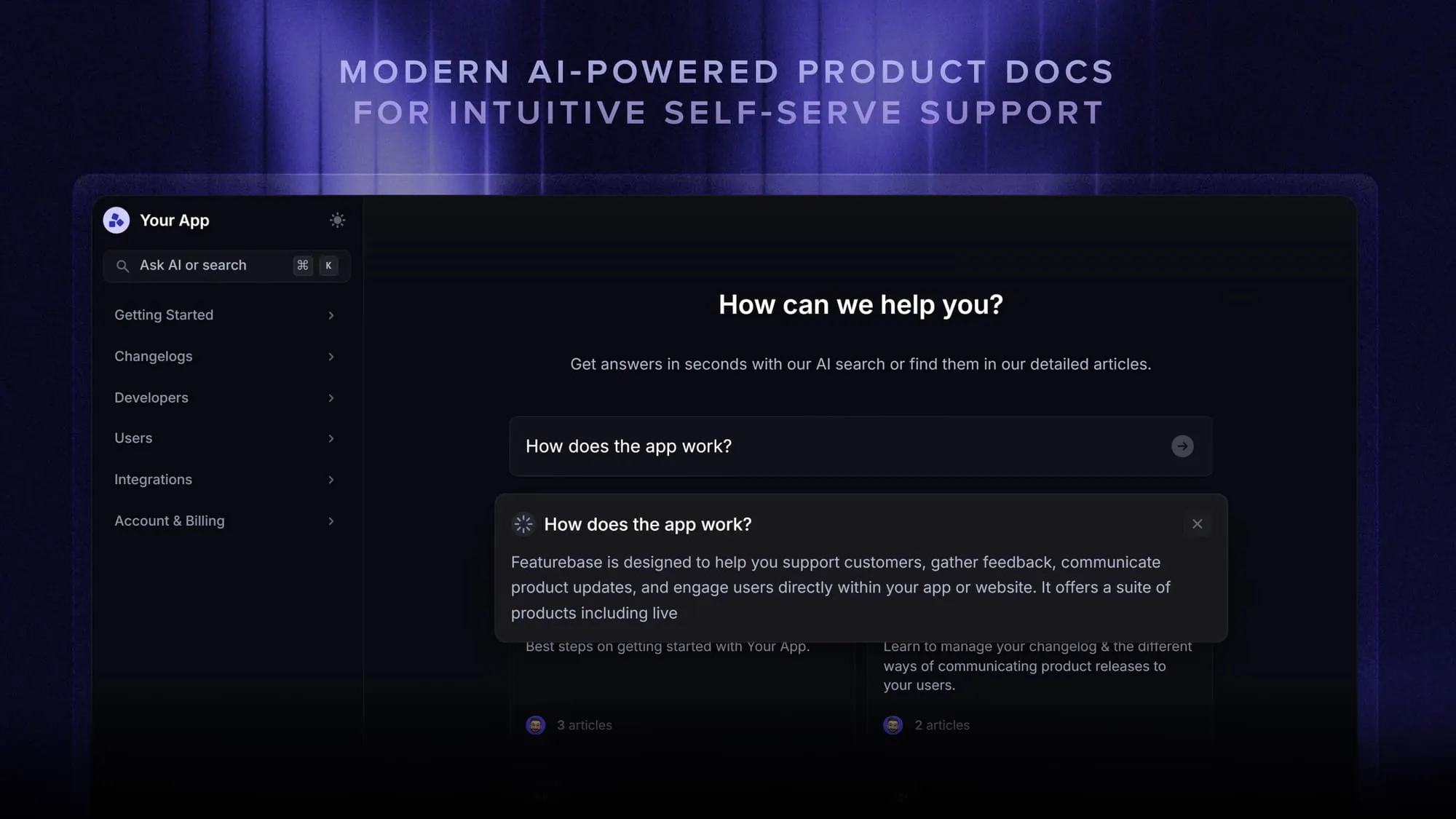
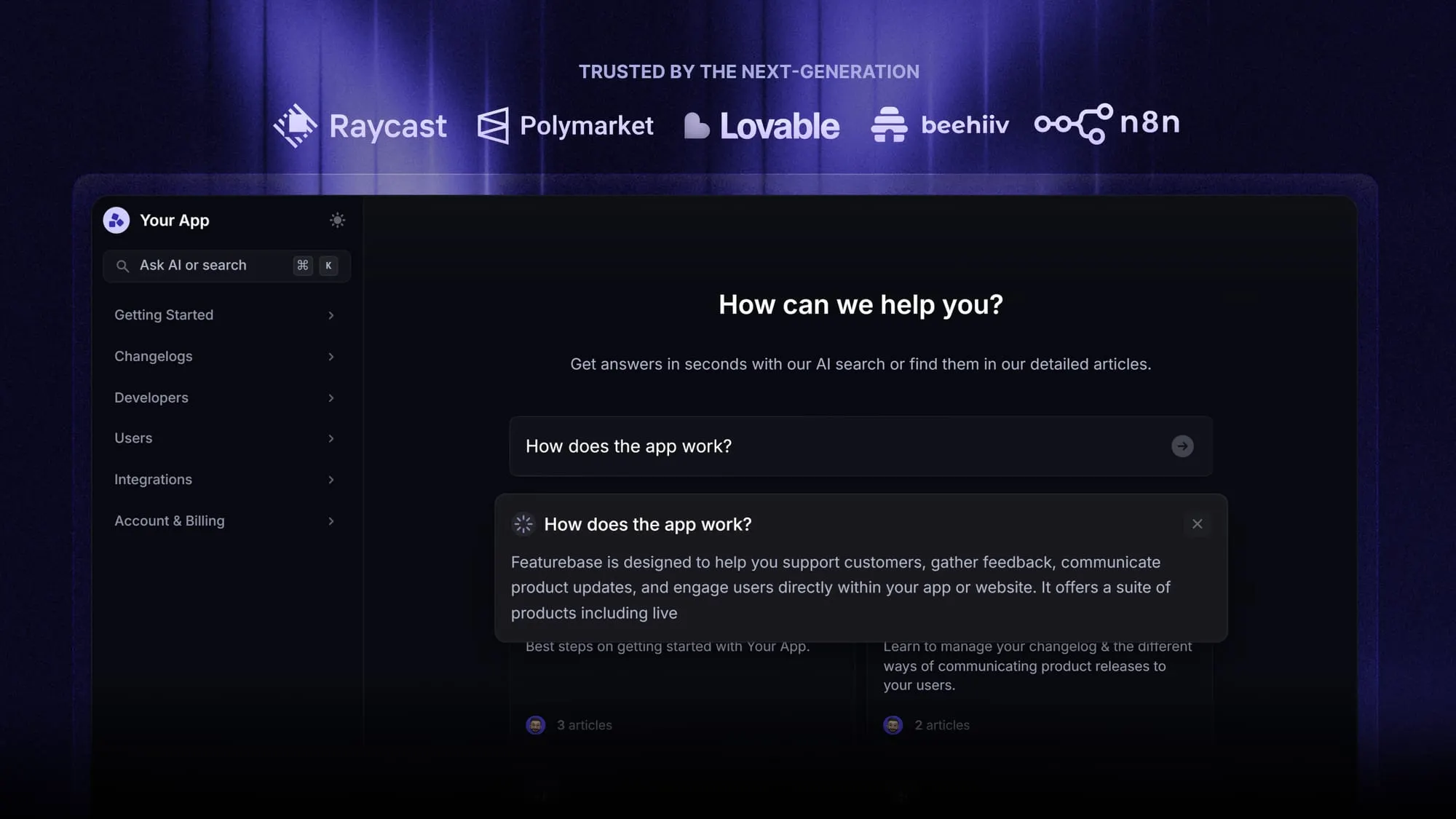
If you want your knowledge base to stay organized as it grows, the tool you build it on matters as much as the structure itself. Featurebase is a modern and powerful support platform for SaaS teams that helps you create beautiful product docs, provide AI-powered support, and collect feedback all in one place. It's loved by thousands of support teams from companies like Lovable, Raycast, and n8n. 💫
Top features:
- Public & internal help center – Create a branded knowledge base with your domain and design for easy self-service support
- Embeddable in-app widget – Serve help articles directly within your app, reaching users where they need assistance most
- AI-powered search answers – Summarize answers for users right in the search bar in seconds
- Automatic AI translations – Automatically translate and show your help center in your users' native languages
- Multi-brand support – Manage multiple help centers and live chats from a single workspace
- AI-powered support platform – Manage chat, email, and Slack support conversations from one AI-powered view
- Feedback & roadmap tools – Collect feature requests and close the loop with updates
- Product updates – Publish release notes with a changelog page, in-app widget, and emails
- Integrations – Connects with Slack, Linear, Jira, HubSpot, and more
Pricing: You can create a public help center with a fully free plan. Paid plans start at just $29/seat/mo for unlimited articles.
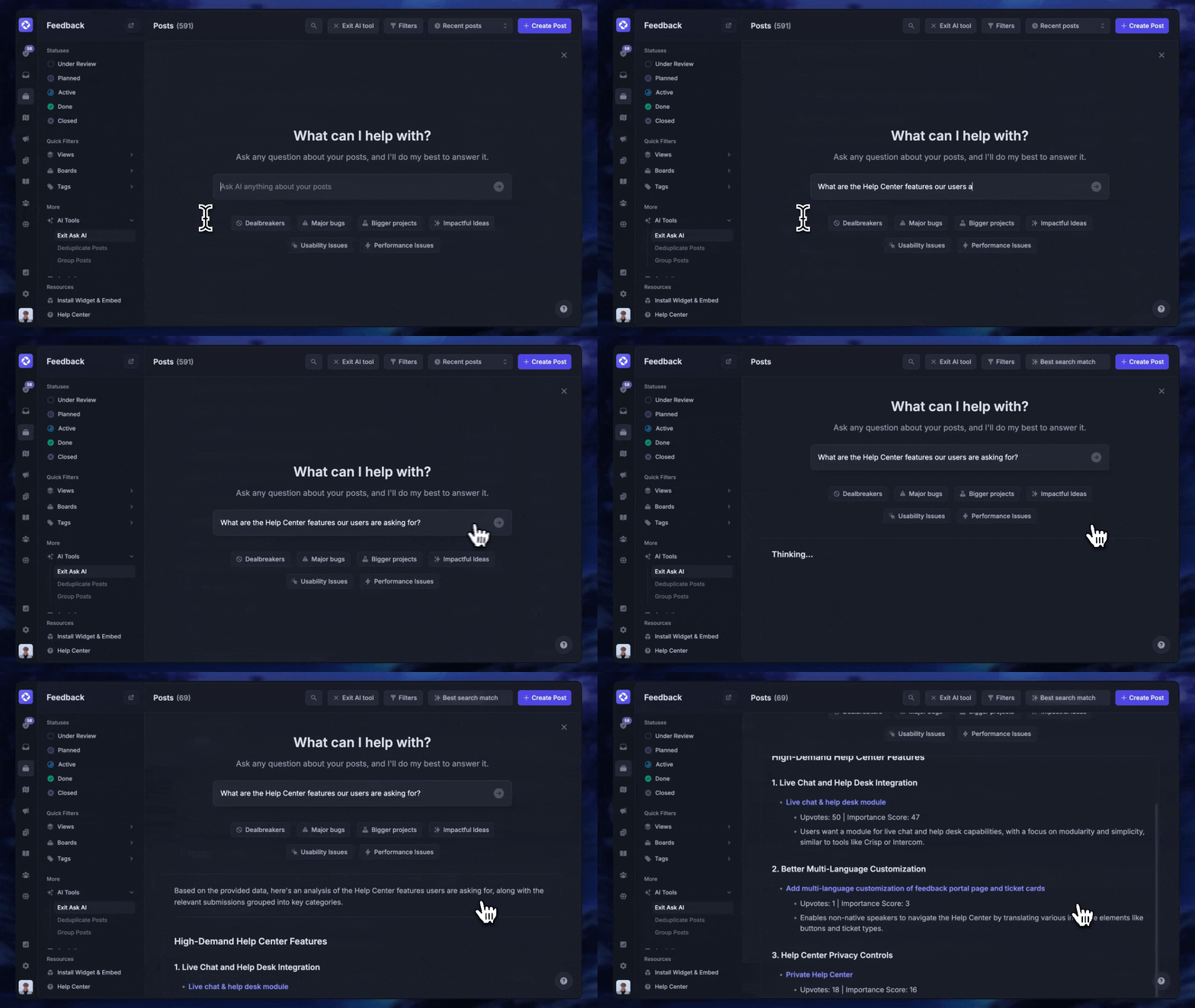
Featurebase offers a modern customer-facing product suite by integrating your help center, live chat, feedback collection, and product updates to build better products and customer experiences.
Conclusion
Organizing a knowledge base is not a one-time project, it is a system: define your audience, audit your content, design a shallow and logical structure, tag consistently, write for scannability, make search the front door, set clear ownership, and keep measuring. Get those right and your knowledge base becomes something people trust instead of avoid.
Featurebase brings your help center, live chat, feedback, and product updates into one platform, so the knowledge base you organize today keeps working as your product and team grow. With AI-powered search and both public and internal help centers, answers stay easy to find no matter how much content you add.
There's a free plan to create a public help center, and onboarding is fast, so there's no downside to trying it. 👇
Create a beautiful AI-powered Help Center with Featurebase for free
FAQs
Most knowledge bases follow a simple hierarchy: broad top-level categories, a few subcategories, and individual articles beneath them, with search sitting on top as the fastest way in. The goal is to keep it shallow, ideally no more than 3 levels deep, so users can predict where an answer lives. Group content by the task a person is trying to complete rather than by which team created it.
The 5 C's are a loose framework for how knowledge flows through an organization, most commonly described as capture, curate, connect, culture, and consume. In practice they mean: capture what people know, curate it into accurate content, connect it so it is easy to find, build a culture that rewards sharing, and make it easy to consume. Different sources word them slightly differently, so treat it as a mental model rather than a rigid standard.
Aim for 5 to 10 top-level categories. Fewer than that and each category becomes a catch-all, more than that and the homepage stops being scannable. If you find yourself needing more, that is usually a sign the content should be nested into subcategories instead of adding another top-level bucket.
Treat updates as continuous rather than a once-a-year cleanup. Revise articles whenever a product, policy, or process changes, and schedule a broader audit at least quarterly for high-traffic content and annually for everything else. Assigning review dates and clear owners is what keeps this from slipping.
An internal knowledge base serves employees with things like policies, onboarding, and process documentation, while an external one serves customers with help articles, FAQs, and troubleshooting guides. The core difference is audience and access, not the underlying idea. With a platform like Featurebase, you can run both a public and an internal help center from the same workspace and control who sees what.
Write article titles the way users phrase their questions, add synonyms and tags for the terms people actually type, and prioritize fresh, verified content in results. Then review your search logs, especially queries that return nothing, and turn those gaps into new articles. AI-powered search that summarizes an answer directly in the search bar goes a step further by giving users a response without making them open multiple articles.