Automated Ticketing System: Features, Benefits & Setup
Learn how an automated ticketing system works, which workflows to automate, and how to choose and set up software that improves customer support.


On this page
- Key takeaways
- What is an automated ticketing system?
- How does an automated ticketing system work?
- Benefits of an automated ticketing system
- 7 ticketing workflows you can automate
- How to choose an automated ticketing system
- How to implement ticketing automation in 5 steps
- How to measure ticketing automation
- Conclusion
Get the modern Ticketing Inbox designed for efficiency
Your support team loses time before the real work even starts: reading requests, chasing missing details, assigning owners, and sending status updates.
An automated ticketing system can handle those repetitive steps. In this guide, I’ll show you which workflows to automate first, where AI helps, and how to keep customers from getting stuck when they need a person. 👇
Key takeaways
- Automate the repetitive work: Ticket automation can capture requests, assign owners, send updates, and escalate cases that need attention.
- Match the method to the task: Rules handle predictable decisions. AI helps interpret customer messages and answer questions from your knowledge base.
- Keep a clear handoff: Every workflow needs a fallback when information is missing or a customer needs a person.
- Measure the customer outcome: Faster replies matter, but so do successful resolutions, reopened tickets, and customer satisfaction.
- Featurebase ✨ combines AI-powered support, ticketing, and workflow automation with a help center and customer feedback tools.
What is an automated ticketing system?
An automated ticketing system is software that uses rules or AI to handle parts of the support ticket lifecycle. It turns incoming requests into trackable work and can categorize, prioritize, route, and update tickets without an agent repeating those steps manually.
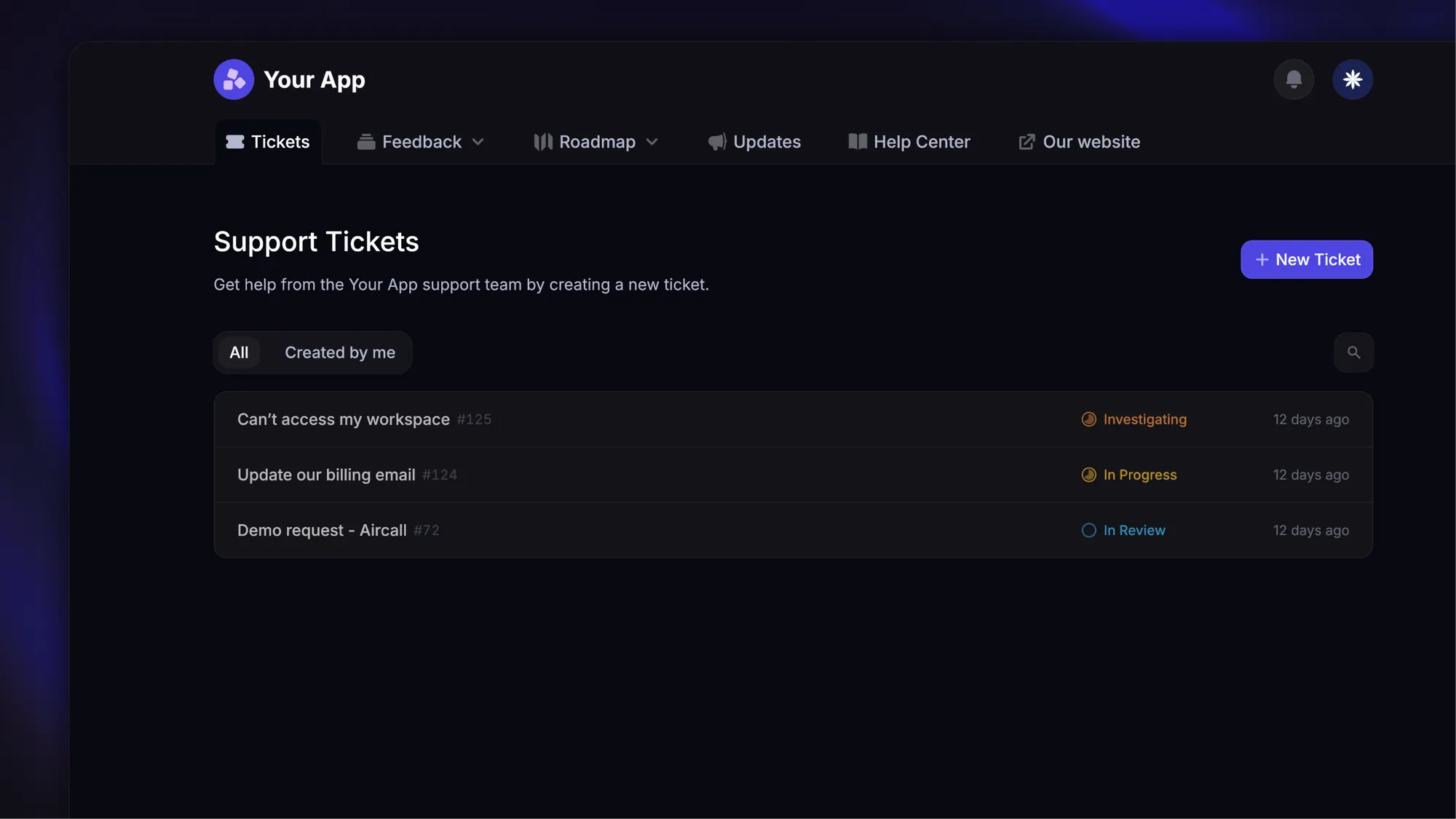
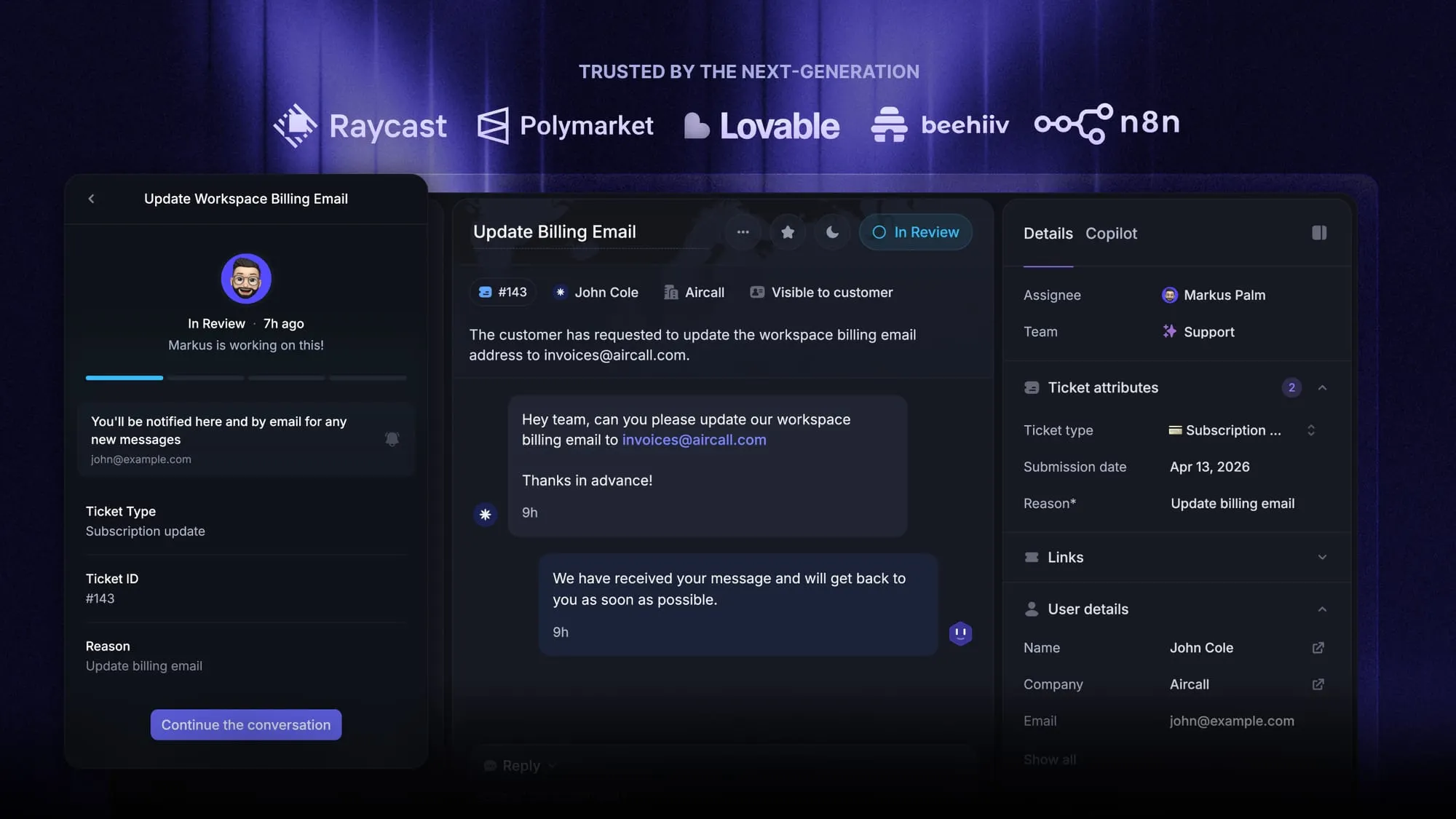
For example, a customer reports a failed data export. The system collects the workspace details, assigns the request to technical support, and acknowledges receipt. An agent can start investigating with the context already attached.
The same idea applies to internal IT service requests, such as employee access problems. This guide focuses on customer support, where the workflow also needs to preserve the conversation and keep the customer informed.
Rule-based automation vs. AI-powered ticketing
Rule-based automation follows explicit instructions: if the request concerns billing, send it to the billing team. It works well when the information needed for the decision is structured and the next action is predictable.
An AI-powered ticketing system can interpret free-text messages, help with ticket categorization, or answer questions using approved content. It can recognize that “my export keeps hanging” describes a technical problem even if the customer never selects that category.
You can combine both approaches. AI identifies the likely issue, while rules control assignment and escalation. For actions such as changing account access or issuing refunds, define the required authorization before allowing automation to act.
How does an automated ticketing system work?
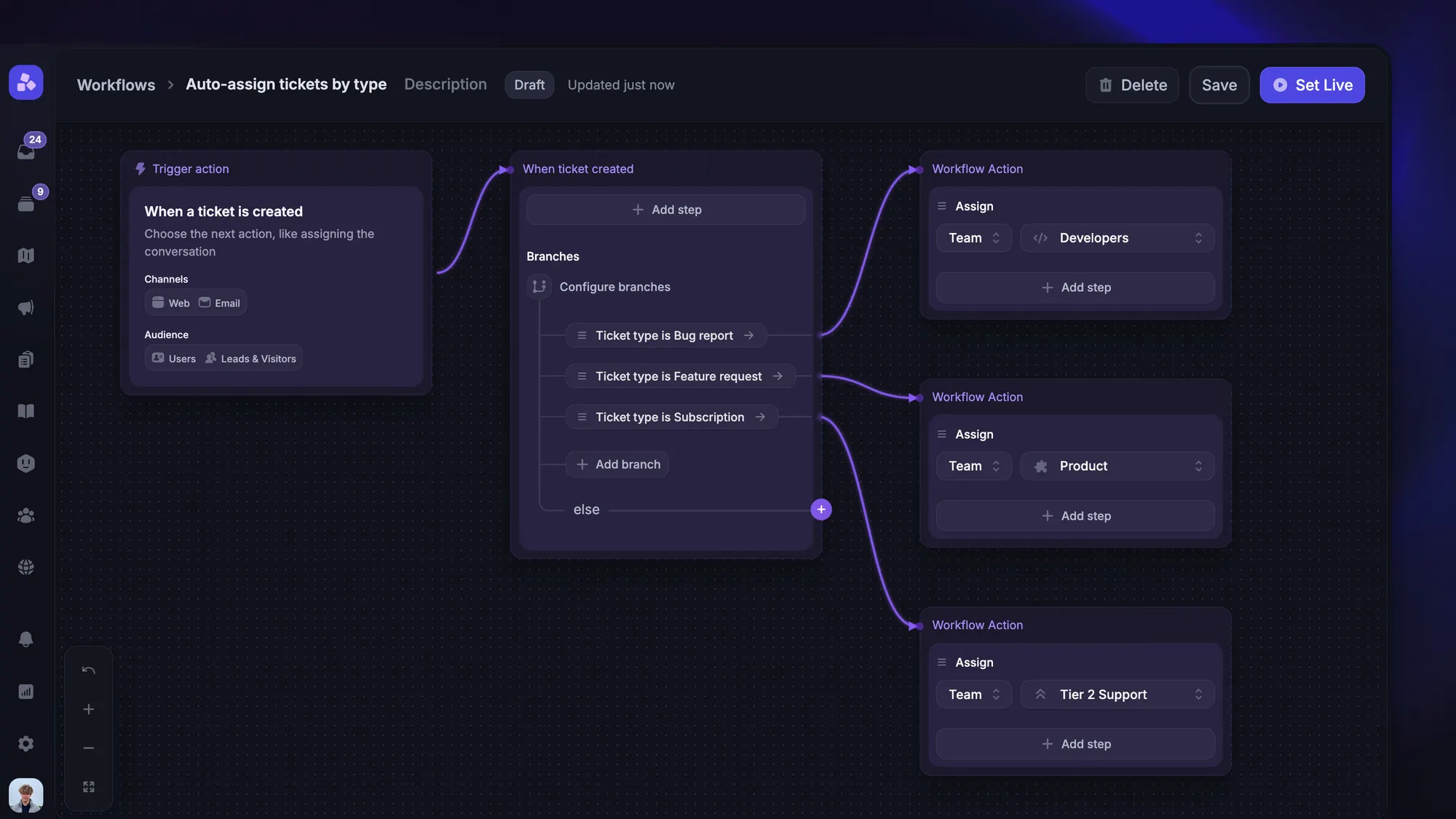
Ticket automation starts with an event and follows a defined customer service workflow. The useful building blocks are:
- Trigger: An event starts the workflow, such as a new request or an approaching response deadline.
- Condition: The system checks relevant information, such as issue type, customer plan, or current ticket status.
- Action: It assigns the ticket, sends a message, or performs another permitted task.
- Fallback: A person or designated queue takes over when the normal path cannot continue.
Take a billing request. A new message triggers the workflow, the selected request type identifies it as billing, and a rule assigns it to the billing queue. If the account details are missing, the system asks for them or sends the request for review.
As the ticket moves toward resolution, additional events can trigger updates or follow-ups. Keep those actions connected to the same record so the next agent can see what happened and why.
Benefits of an automated ticketing system
The biggest benefit is reducing the work around a support request. Your team can spend less time moving tickets and more time solving the issues inside them.
- Faster ownership: Automated ticket assignment can put a request in the right queue as it arrives, instead of waiting for someone to sort the inbox.
- More consistent service: Standard workflows apply the same intake questions and escalation rules to comparable requests.
- Less back-and-forth: Structured forms and relevant self-service answers help customers provide useful details earlier.
- More capacity for complex cases: Routine updates and recurring questions take less manual effort, leaving agents more time for investigation.
- Clearer oversight: Ticket histories and reporting help managers find delayed handoffs and recurring problems.
There is evidence that AI can improve agent productivity. A 2025 study of 5,172 customer-support agents found that access to an AI assistant increased issues resolved per hour by 15% on average. The study examined one company’s support operation, and results varied by agent experience.
That was AI assisting people, so it doesn’t establish an autonomous resolution rate. Set your own targets from a pilot using your customers’ requests.
7 ticketing workflows you can automate
I’d start with workflows that remove a recurring delay and have an obvious owner when something goes wrong. These examples cover the journey from the first message to post-resolution feedback.
1. Capture structured customer requests
Missing information creates extra work before troubleshooting begins. A request form can collect the affected feature, a description of the problem, and supporting evidence when a customer reports a bug.
- Trigger and condition: A customer starts a technical support request.
- Action: Collect the details needed for that request type and attach them to the ticket.
- Exception: Give customers a route to support when they cannot provide a screenshot or identify the affected feature.
Ask only for information that changes what happens next. A billing question shouldn’t require the same form as a bug report, and customers shouldn’t have to re-enter account information you already know.
2. Route tickets using issue and customer context
Automated ticket routing connects the request to a team that can handle it. Use reliable context such as the request category, language, or support entitlement.
- Trigger and condition: A new ticket contains enough information to identify the responsible team.
- Action: Assign it to the appropriate queue and apply a priority based on the agreed criteria.
- Exception: Send ambiguous requests to a monitored triage queue, with someone responsible for reviewing them.
In Featurebase, Workflows can convert conversations into tickets and apply routing or assignment rules. Conversion uses the conversation’s subject and body, but it doesn’t automatically fill custom ticket fields. Collect any additional details your team needs separately.
Review tickets that agents reassign. Frequent transfers usually point to an unclear category or a routing rule that needs adjusting.
3. Answer recurring questions with AI
AI can answer repeat questions when your knowledge base contains clear, current guidance. Start with topics such as explaining a documented feature or finding an invoice.
- Trigger and condition: A customer asks a question covered by approved support content.
- Action: Provide a relevant answer and any useful next steps.
- Exception: Hand off when the answer is unavailable, the customer asks for a person, or the request requires specialist judgment.
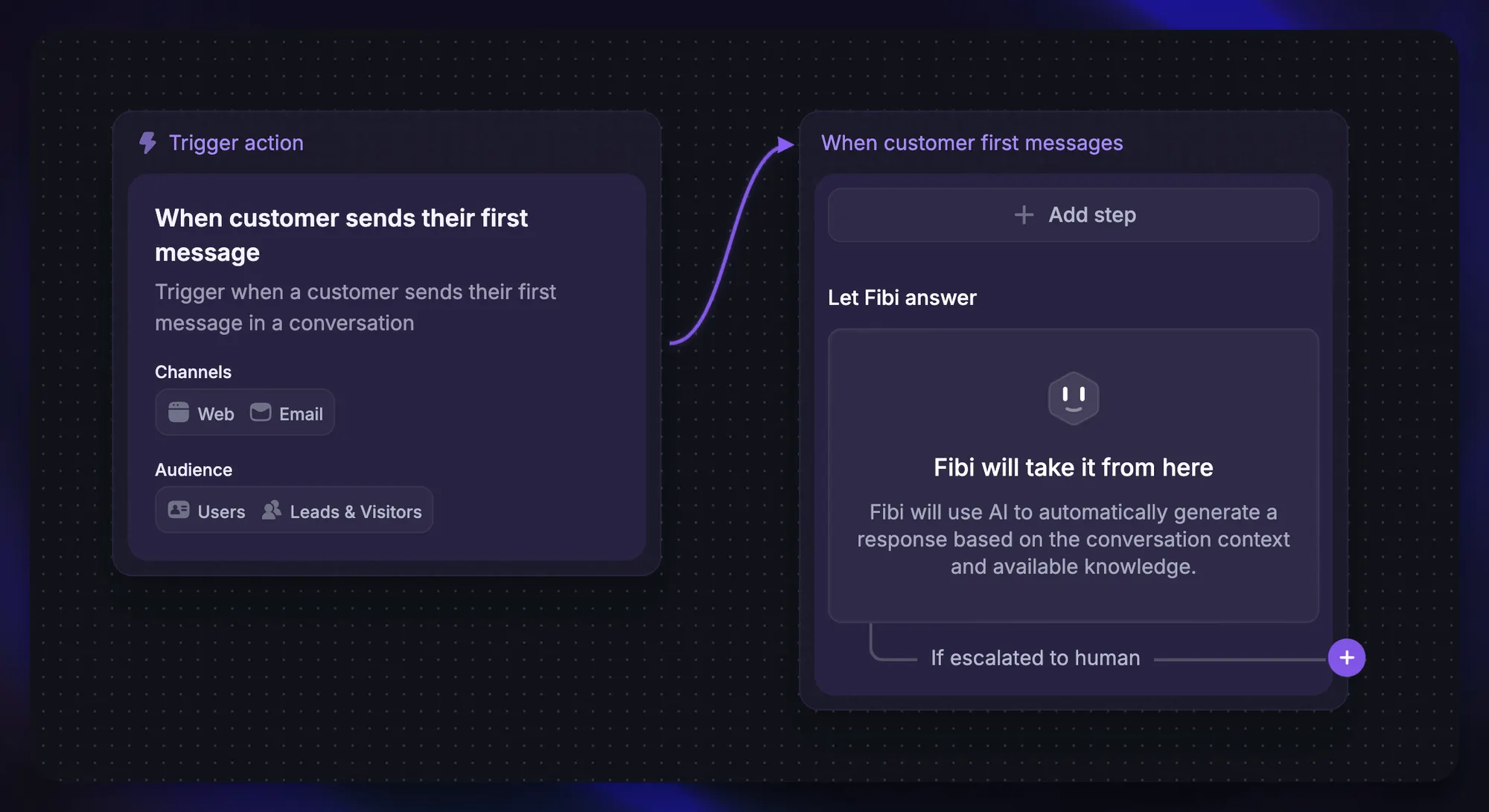
For example, Featurebase’s Fibi AI Agent can answer customer-facing tickets using their initial title and description, then hand the request to a teammate when needed.
In Salesforce’s 2025 State of Service research, service teams estimated that AI handled 30% of their cases. That is a self-reported survey finding, so use your own reviewed conversations to decide which topics are ready for automation.
4. Escalate urgent or unanswered requests
Service level agreements, or SLAs, define response or resolution targets. Automation can flag a ticket before a deadline is missed and escalate the request to the right person.
- Trigger and condition: A ticket approaches its SLA deadline or meets your criteria for a high-impact incident.
- Action: Notify the responsible team and escalate ownership according to the support policy.
- Exception: Define an after-hours path so alerts don’t disappear into an unattended queue.
Use business impact when setting ticket prioritization rules. A widespread login failure needs different treatment from a cosmetic issue, even if both messages contain the word “urgent.”
Also decide whether timers use business hours or calendar hours. That choice affects what you promise customers and when escalations fire.
5. Coordinate support and engineering work
When a support request needs a product fix, an integration can connect the customer ticket to an engineering issue. This reduces manual copying while keeping both teams informed.
- Trigger and condition: Support confirms a bug that requires engineering work.
- Action: Create or link an engineering issue and synchronize the updates each team needs.
- Exception: Keep a support owner responsible if synchronization fails or the engineering status is unclear.
Define which system controls each status and which comments can reach the customer. An internal note about an investigation may contain details that shouldn’t become a public reply.
Keep “engineering completed the change” separate from “the customer can use the fix.” The release may still need to be deployed or verified before support closes the ticket.
6. Follow up before closing inactive requests
Automatic follow-ups help keep waiting tickets visible. They also give customers a chance to respond before a request is closed.
- Trigger and condition: A ticket has been waiting for customer input for your chosen interval.
- Action: Send a reminder describing the information needed and what happens next.
- Exception: Exclude requests waiting on your team, and stop the closure sequence when the customer replies.
Write the reminder like a helpful follow-up. “We’re waiting for the error message so we can investigate” gives the customer a clear next step.
If you close inactive requests, explain how customers can resume the conversation. Track these closures separately from confirmed resolutions when reviewing performance.
7. Collect feedback after resolution
A short customer satisfaction survey can show whether the support experience actually helped. Trigger it after a meaningful resolution point, with limits that prevent repeated surveys during the same issue.
- Trigger and condition: The request is resolved and is eligible for a survey.
- Action: Ask for a rating and an optional comment, linked to the ticket.
- Exception: Skip duplicates and send poor ratings to someone who can review the conversation.
Compare feedback for automated and agent-handled requests within similar issue categories. A low rating may reveal an incorrect answer, a frustrating handoff, or a product problem that ticket automation alone cannot fix.
How to choose an automated ticketing system
Choose automated ticketing software around the way your team handles support requests. Bring a few anonymized requests to a trial and follow each one from intake to resolution.
Focus on these capabilities:
- Omnichannel support: Check whether your actual channels share customer history and ownership. A list of supported channels doesn’t show how well the handoff works.
- Flexible workflow automation: Look for useful conditions, predictable rule behavior, and a way to inspect failed or unexpected actions.
- AI and knowledge management: Test answers against your own content and confirm how an agent takes over. Your team should be able to correct the source of a bad answer.
- SLA management: Confirm that response targets, business hours, and escalations match your support commitments.
- Integrations: Test the data exchanged with your CRM and issue tracker, including what happens when a connected service is unavailable.
- Reporting and cost visibility: Check whether you can distinguish human work, AI resolutions, and administrative closures. Include usage fees and required plan upgrades in the budget.
Customer support and internal IT tools can overlap, but their priorities differ. If you need asset tracking or employee access approvals, test those workflows explicitly. For customer-facing support, pay particular attention to conversation continuity and customer updates.
Before committing, run a deliberately incomplete request through the system. The fallback experience tells you a lot about how the tool will behave on a busy day.
How to implement ticketing automation in 5 steps
Start with a narrow pilot that your team can inspect and adjust. Expanding a working workflow is easier than untangling several rules that all went live together.
1. Map your current ticket journey
Review recent tickets from arrival to closure. Note where agents copy information, reassign work, or wait for missing details.
Record a baseline for the request type you plan to automate. Include time to ownership and resolution, plus a quality measure such as reopened tickets. This gives you something useful to compare after launch.
2. Clean up categories and support content
Agree on a small set of categories your team can apply consistently. Define what makes a ticket urgent and who owns each queue.
Update the knowledge base content used in the pilot. Each article should explain the current process and make its limitations clear. Assign an owner who will maintain it as the product changes.
3. Define the workflow and its exceptions
Write down the trigger, conditions, and actions before building the automation. Then specify the fallback owner and the situations that require manual review.
Check whether another workflow can act on the same ticket. Conflicting assignment or closure rules can undo each other’s work, so decide how overlaps should be handled and how you’ll disable a faulty rule.
4. Test realistic cases with your agents
Include straightforward requests alongside missing details, duplicate messages, and replies that arrive during a follow-up sequence. Check the customer-facing message as well as the ticket’s internal state.
Ask agents to inspect incorrect routing and AI handoffs. They should receive the original request and relevant context so customers don’t have to explain the problem again.
5. Launch gradually and review results
Enable the workflow for a limited request category or queue. Give someone responsibility for reviewing failures and gathering agent feedback during the pilot.
Expand when the results meet your service and quality targets. Keep reviewing after launch, especially when you change support hours, product behavior, or integrations.
How to measure ticketing automation
Measure speed alongside the quality of the outcome. A ticket that closes quickly and reopens tomorrow still needs work.
Track a focused set of customer support metrics:
- Time to ownership: How long requests wait before reaching a responsible team or agent.
- First response time: How quickly customers receive a useful reply. Report automatic acknowledgments separately where possible.
- Resolution time: How long it takes to resolve a request, with consistent rules for paused and reopened tickets.
- SLA attainment: The share of eligible tickets that meet the response or resolution target you’re measuring.
- Reopen and transfer rates: How often tickets return or move between teams, helping you identify premature closure and routing problems.
- Customer satisfaction: Whether customers are happy with the experience, considered alongside survey response rates and written comments.
If you track AI resolution rate, document the definition. Decide what counts as resolved, which conversations are eligible, and how later human involvement affects the result. Vendor dashboards may use different definitions.
Compare similar request categories over comparable periods. Review a sample of successful cases as well as failures, because an incorrect answer may never receive a complaint.
Conclusion
An automated ticketing system works best when each workflow has a clear purpose and owner. Start with a recurring delay, build a reliable fallback, and expand once the results show a better support experience.
Featurebase brings ticketing and workflow automation together for software teams whose customer base is growing faster than their support capacity. It combines AI-powered support, help center, and feedback management into a single platform for startups that want all their customer-facing tools in one place.
There’s a Free plan with unlimited conversations to explore the inbox. Workflows and SLAs are available on Professional and Enterprise plans, while Fibi is available on paid plans with usage-based pricing. 👇
Automate your support with the fastest AI-enhanced Inbox today
FAQs
Ticket automation changes which tasks agents handle, but it doesn’t remove the need for support expertise. Staffing needs still depend on request complexity and the service you promise. Agents also need time to review automation and improve the content it relies on.
A CRM primarily organizes customer relationships and commercial context. A ticketing system organizes individual service requests through resolution. Connecting your CRM and ticketing system lets agents use relevant account information while keeping the support work attached to its ticket.
Ticketing software provides the request-tracking foundation of a helpdesk. A helpdesk is the broader support operation or platform, which may also include a knowledge base and customer communication channels. Vendors often use these labels loosely, so compare the capabilities you need.
Yes, when the software supports the required fields, approval steps, and integrations. An industry-specific workflow may also require specialized reporting or data handling that a general-purpose tool lacks. Test the full process against your organization’s requirements before choosing a platform.
Look for access controls that limit who can view tickets and change automation rules, plus an audit history of sensitive actions. Evaluate authentication and encryption alongside the vendor’s data retention and AI data-use policies. Connected tools should receive only the permissions and customer data they need.