How to Create a Chatbot for Your Website
Learn how to create a chatbot for your website step by step, from choosing your build approach and training it on your content to embedding it and testing before launch.


On this page
Automate your support with the fastest AI-enhanced Inbox today
A visitor lands on your site at 11 pm with a simple question about pricing. Nobody's online to answer, so they close the tab and check a competitor instead. That quiet drop-off happens more than most teams realize.
A website chatbot fixes it by answering instantly, any hour, in any language. And building one is far easier than it used to be. In this guide, I'll walk you through the whole process, from deciding what your chatbot should do to embedding it and improving it after launch. 👇
Key takeaways
- Adding a chatbot to a website comes down to 3 moves: train it on your content, set its behavior, and embed it with a snippet.
- The setup takes minutes, but the prep - a clean knowledge base, clear scope, and the right tone - is what decides whether the bot actually helps visitors.
- You don't need to code. No-code tools get most website chatbots live the same day.
- Always configure a human handoff so questions the bot can't answer reach a real person with full context.
- Test with real questions from your inbox before launch, then keep refining from live conversations.
- Featurebase✨ lets you add an AI chatbot, help center, and shared inbox to your site from one platform, with a free plan to start.
What a website chatbot actually does
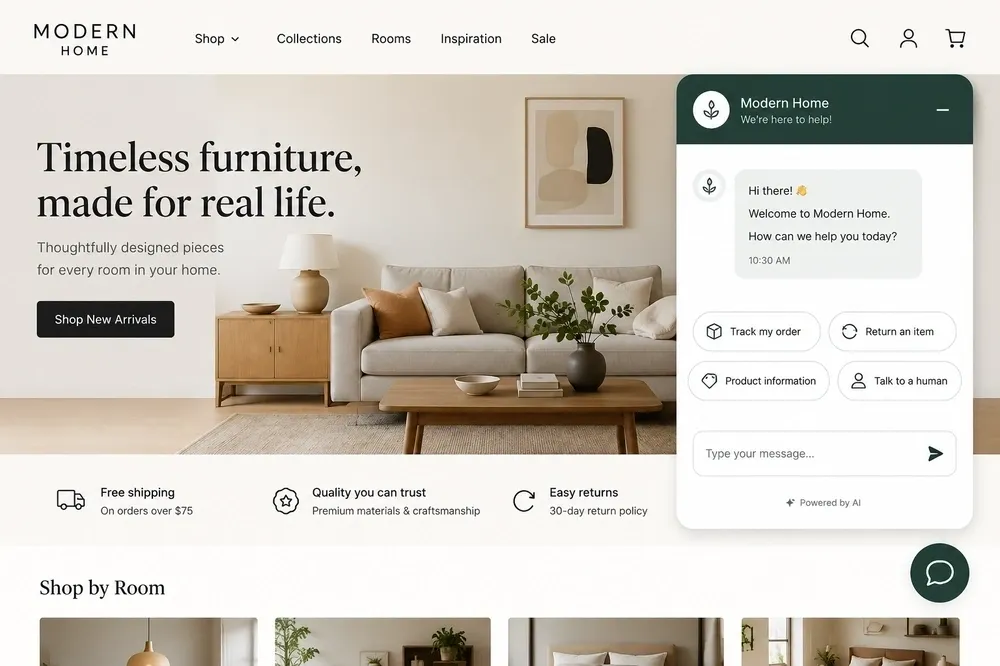
A website chatbot is a software widget that sits on your site and holds automated conversations with visitors through a chat window. It answers questions, points people to the right page, captures leads, and hands off to a human when it needs to.
Older bots followed rigid decision trees. You clicked a button, it showed a canned reply. Modern AI chatbots use large language models to understand what a visitor actually means, so someone can type "can I get a refund if it doesn't fit?" and get a real answer pulled from your return policy, even if those exact words never appear in your docs.
It's worth being clear on how this differs from plain live chat and a rule-based bot:
- Rule-based chatbot: follows preset scripts and buttons. Predictable and easy to build, but it breaks the moment a visitor phrases something it didn't expect.
- AI chatbot: understands natural language and answers from your content. More flexible, and it improves as you feed it better information.
- Live chat: a real human on the other end. Best for complex or sensitive issues, but it can't cover every hour or every visitor at once.
The demand is real, not hype. Gartner predicts that by 2027, chatbots will become the primary customer service channel for roughly 25% of organizations. For most websites, the question isn't whether to add one, but how to build it well.
What to decide before you build
Here's the part that matters most: the embed takes 5 minutes, but the preparation is what makes a chatbot useful. A bot trained on thin or contradictory content will confidently give wrong answers, which is worse than no bot at all.
Work through 4 decisions before you open any editor:
- Define its primary job: pick one main goal, whether that's answering FAQs, capturing leads, booking appointments, or routing support. The job shapes everything else. A bot built for lead capture needs a contact form early in the chat, while an FAQ bot needs depth in its knowledge base instead.
- Organize your knowledge base: gather your top FAQs, current pricing, return and shipping policies, contact details, and product descriptions. This is the single biggest lever on answer quality, so don't launch until it's loaded and accurate.
- Audit for contradictions: if both an old and a new version of a policy live in your content, the AI may surface either one or blend them. Remove duplicates and outdated entries before you train, since one stale doc can corrupt answers on related topics.
- Set scope and tone: decide which topics the bot handles and which it should hand to a human, then match its voice to your brand. A skateboard shop and a law firm shouldn't sound the same.
Spending an hour here saves you days of cleanup later. If you want inspiration on what a bot can realistically own, browse some chatbot use cases before you commit to a single job.
Choose how you'll build it
There are 3 ways to build a website chatbot, and the right one depends entirely on your technical comfort and how much control you need.
No-code chatbot widgets
For most website owners, this is the answer. No-code tools let you train a bot on your content, style it, and embed it with a copy-paste snippet, with no developer required. You can usually go live the same day.
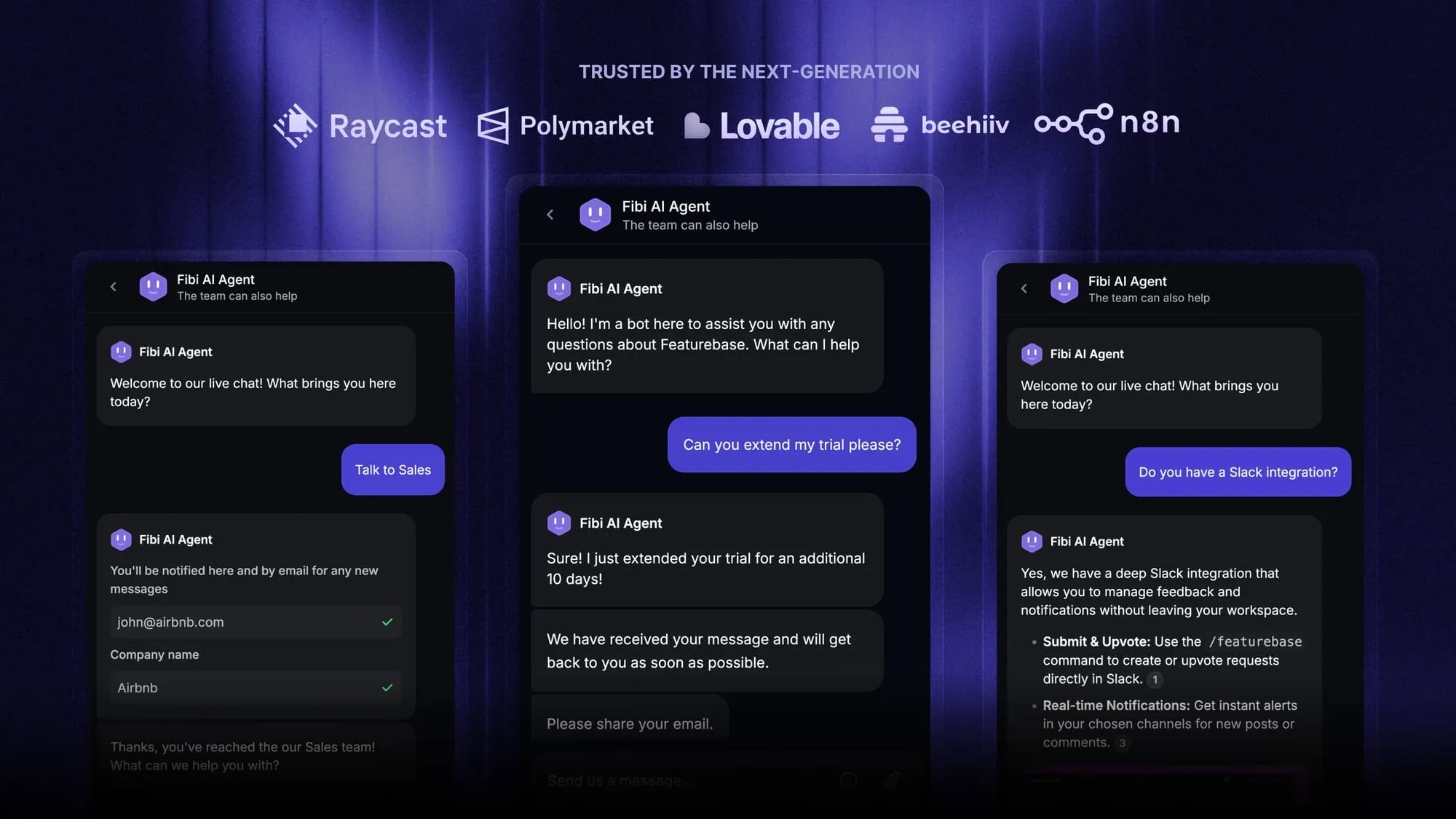
This is where a tool like Featurebase fits. It gives you an embeddable Messenger widget with live chat, help articles, and product updates in one place, plus the Fibi AI Agent, which resolves customer questions on autopilot and can even run actions like extending a trial or issuing a refund inside the conversation. There's no code to write beyond pasting the widget onto your site.
If you want to compare options in this category, our roundup of AI chatbot platforms breaks down where each one fits.
Low-code chatbot platforms
Low-code platforms sit in the middle. You get a visual builder for conversation flows plus room to add custom logic, integrations, and connections to your CRM or backend. They suit teams that have some technical resource and need more than a widget can offer, like routing rules or deeper data lookups.
Custom-coded chatbots
Building from scratch gives you maximum control over behavior, data handling, and integrations. You'd typically use a language model API, a backend to handle requests, and your own frontend chat window. It's powerful, but it means real development time, hosting, and ongoing maintenance, so it only makes sense when off-the-shelf tools genuinely can't do what you need. If you're going this route, our overview of chatbot development tools is a useful starting point.
If your team doesn't have the engineering time, you can hire ChatGPT developers to build and maintain the bot for you.
How to build and add the chatbot, step by step
Once you've picked your approach, the actual build follows the same 4 steps whether you're using a no-code widget or something more custom. I'll frame these around a no-code tool, since that's what most website owners will use.
Step 1 - Train it on your content
Point the bot at your knowledge. Most no-code tools let you train in a few ways:
- Website URL: enter your domain and the tool crawls your pages (product pages, FAQs, help docs) automatically. This is the fastest option and often finishes in under a minute.
- Uploaded files: add PDFs, DOCX, or TXT files with policies, catalogs, or manuals. Well-structured, text-based documents work best.
- Q&A pairs: manually write exact answers for high-stakes questions like pricing or refunds, where you want full control over the wording.
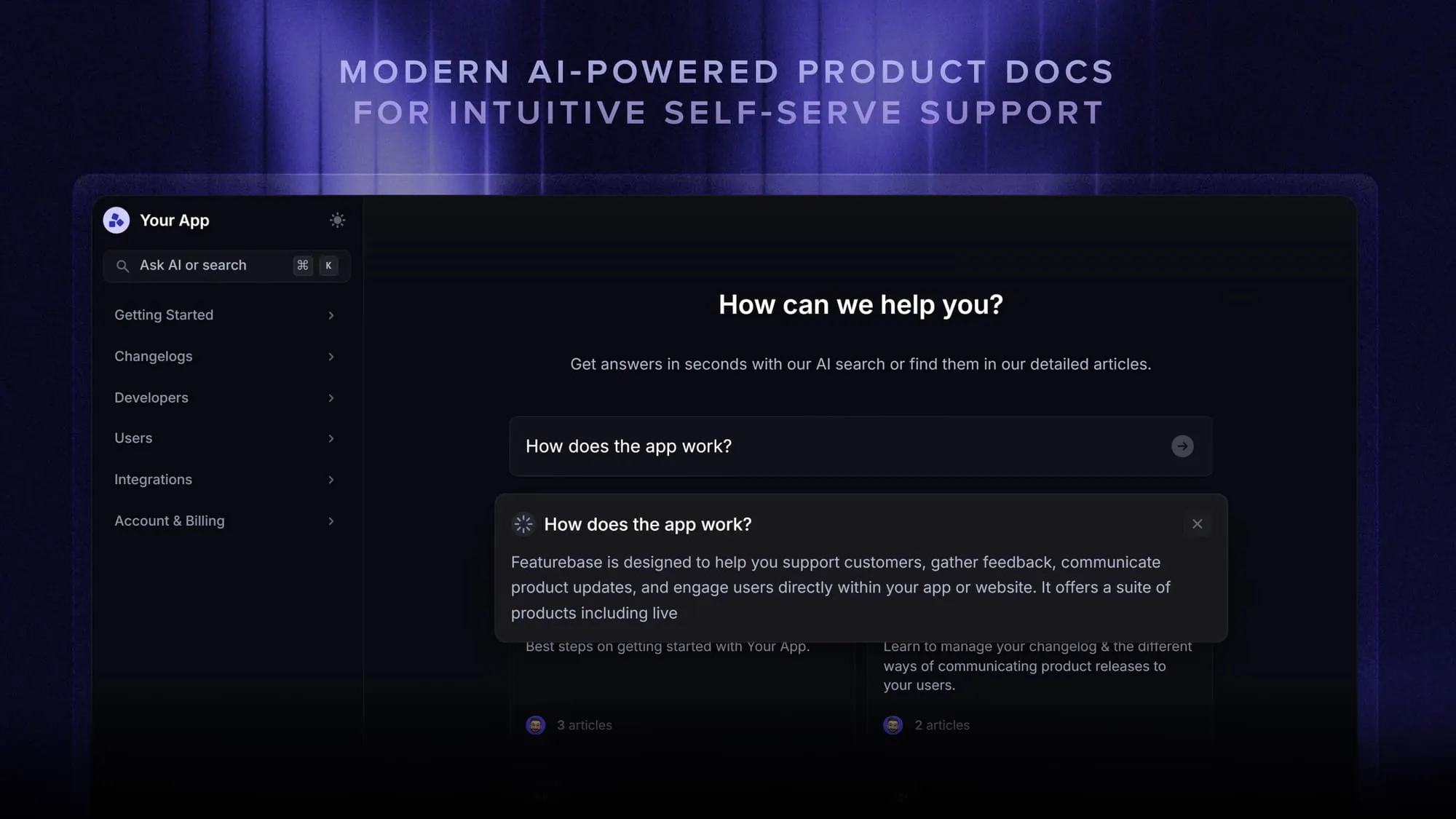
Pairing an AI bot with a proper knowledge base is what lets it answer accurately instead of guessing. The bot only knows what you give it, so this step is the foundation for everything else.
Step 2 - Configure behavior, tone, and human handoff
Next, shape how the bot acts. Set its greeting to something specific ("I can help with pricing, shipping, and returns"), not a vague "Hi, how can I help?" that gives visitors no reason to engage. Set the tone to match your brand, and write clear guardrails for topics it should avoid.
The most important setting here is the human handoff. Configure a fallback so that when the bot can't answer, hits a keyword, or the visitor asks for a person, the conversation transfers to a human with the full chat history attached. A bot that admits its limits and routes cleanly beats one that confidently invents answers.
Step 3 - Embed it on your website
When the bot is ready, the tool gives you a short HTML snippet. Paste it into your site, usually just before the closing </body> tag, or into a custom HTML block. Most no-code widgets work on WordPress, Shopify, Wix, Squarespace, Webflow, and any platform that accepts custom HTML.
That's the entire technical step for a no-code bot. Publish, and the chat window appears on your site.
Step 4 - Test before you go live
Don't launch on invented questions. Pull 10 to 15 real messages from your support inbox or contact form and run them through the bot, including the messy, emotional ones. Real visitors ask "my order hasn't arrived and nobody's replying," not "what are your hours?"
Check that answers are accurate, the conversation flows, and the handoff fires when it should. Fix any gaps in the knowledge base, then open it up to visitors.
How to tell if your chatbot is working
A chatbot without metrics is a guess. Once it's live, watch a handful of numbers to know whether it's earning its place and where to improve:
- Engagement rate: the share of visitors who actually interact with the bot after seeing it. Low engagement usually means your greeting or placement needs work.
- Resolution rate: the share of conversations where the visitor's question was genuinely answered. This tells you whether your content is deep enough.
- Escalation rate: how often chats end in a human handoff. A little is healthy, but a lot points to gaps in the knowledge base.
- Lead capture rate: if lead gen is the job, track how many chats end with a captured contact.
These are close cousins of the live chat metrics most support teams already track. Review your transcripts weekly in the first month, look for questions the bot fumbled, and feed the fixes back in.
The work doesn't stop at launch. Retrain whenever your pricing, policies, or products change, and lean on generative AI for customer service to spot patterns in what visitors keep asking. The best bots are the ones that keep learning.
Conclusion
Creating a chatbot for your website isn't the engineering project it once was. Decide what it should handle, feed it a clean and accurate knowledge base, pick a build approach that matches your skills, embed it with a snippet, and keep improving it from real conversations. The prep is where the results are won.
Featurebase is a modern AI customer support platform that lets you add a chatbot, help center, and shared inbox to your website from one place. Its Fibi AI Agent resolves customer questions on autopilot and can run actions like extending trials or issuing refunds, all from an embeddable Messenger widget you drop onto your site. You also get an AI-powered help center for self-serve answers and a unified inbox for when a human needs to step in.
It comes with a Free plan and quick onboarding that doesn't require a credit card, so there's no downside to trying it. 👇
Automate your support with the fastest AI-enhanced Inbox today
FAQs
With a no-code tool, most website chatbots can be live the same day you sign up, and URL-based training often finishes in under a minute. A low-code platform takes longer to configure flows and integrations, usually days. A fully custom-coded bot can take several weeks to build and test.
No. No-code chatbot tools handle training, behavior, and appearance through a visual dashboard, and the only technical step is pasting a short snippet onto your site, which most non-developers manage without help. Coding only becomes necessary if you're building a custom bot or need deep, bespoke integrations.
Free options exist, and many tools offer a free tier to start. Paid plans for small businesses typically range from around $5 to $40 per month depending on features and message volume, while enterprise tools often use per-resolution pricing that scales with usage. Featurebase has a free plan and paid plans that start at $29 per seat per month, and you can see how the wider market compares in our chatbot pricing breakdown.
Accuracy comes from your knowledge base, not the AI model itself. Load specific, current, and non-contradictory content, then set explicit scope boundaries so the bot declines topics it shouldn't answer rather than guessing. For high-stakes answers like pricing or refunds, add exact Q&A pairs so the wording is always right.
With a human handoff configured, the conversation transfers to a live agent with the full chat history intact, so the visitor never has to repeat themselves. You can trigger the handoff on low confidence, a specific keyword, or a direct request for a person. Without a handoff set up, the bot should at least give a clear fallback message pointing the visitor to another channel.
Well-built chat widgets load asynchronously and use lazy loading, so they don't block your page from rendering and the practical impact is usually negligible. Download sizes vary between tools, so pick a lightweight, reputable widget. Check your Core Web Vitals before and after installing to confirm there's no real hit.